
After looking around for a storage solution to house my growing collection of photographs, I found the Western Digital My Book World Edition II. I’ve been storing my photos on single external hard drives so far, but data loss has always been a concern with that approach. All it takes is a hard drive failure, and I’m going to lose a good portion of my hard work. Naturally, I’ve been looking into various RAID or other failsafe solutions, since they’ve gotten to be fairly affordable.
Great design
I was immediately drawn to the new WD My Book line because of their beautiful design, 1 TB capacity, and the ability to configure the device in RAID 1 format, which would mean my data would be mirrored across the two hard drives inside it. (This would also halve the amount of space available, but that was okay with me — I wanted data redundancy.)

For those of you not familiar with WD’s external drives, they have done a beautiful job with their enclosure design, and I raved about their Passport line several months ago. It turns out I now own one of them, a sleek black 160 GB 2.5″ drive just like the one pictured in that post. It’s perfect for data portability, and for a while, I even stored some of my photos on it. But it is just a single drive, and as I said, I’m worried about data loss.
Choosing the product
Back to the My Book line. There were two models I really liked: the My Book Pro and the My Book World. Because I have a mixed OS environment (both PC and Mac), I thought a NAS solution like the My Book World would work best for me, even though its specs said it would only work for Windows. I had a pretty good hunch that I would also be able to access it with my iMac. It runs on Java, it has Samba shares, and those are readily accessible from any Mac. But, this isn’t advertised, and that’s a pity.
By the way, if you’re thinking about getting the My Book Pro drive, make sure to read my review of that model. The takeaway message is to stay away from it, and I explained why in that article.
How it works
The drive itself is beautiful and fairly quiet, except when it boots up. WD has also made firmware upgrades available that make the drives even quieter, so that’s a good thing. I can tell you this right away. If you only plan to use the drive in a Windows environment, it’ll work great. Feel free to buy it, you’ll be happy. But, if you plan to use it in a mixed OS environment, and are looking to access it in more flexible ways, such as with custom drive mappings, and not through the software provided with the drive, you might be very frustrated.
Let me explain. The drive comes with a custom version of something called Mionet. I’ve never heard of it, but it’s software that installs on your machine and makes your files and computer remotely accessible from anywhere. When you run the installer, it’ll prompt you to create an account on the Mionet website, and it’ll register the WD drive, along with your computer, as devices that you can then access remotely. (There’s a monthly fee involved if you want to control your own PC remotely with the software, but you don’t need to pay it to use the WD drive fully.)
Once you install the software, you start up Mionet, and the WD My Book World drive gets mapped automatically to your machine. You also have the option to manage the drive through a browser interface. That’s actually where you configure its volumes (1 TB single volume, or RAID 1, still single volume, but mirrored data and only 500 GB) and other options. Basically, you have to remember that the only proper way to access the drive, whether you’re at home or you’re away, is to start up Mionet and get it mapped to your “My Computer”. If you do that, you’re good to go.
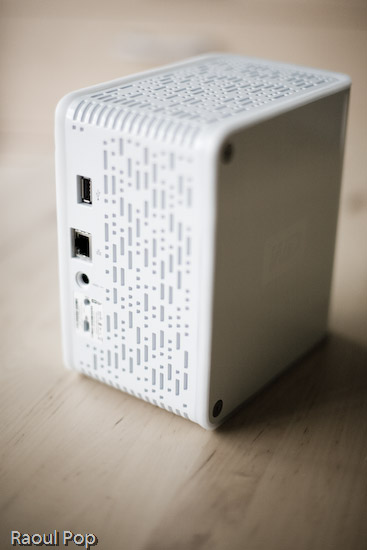
Potential problems
The problem with this approach (and this tends to be a problem only for geeks like me) is that the drive is readily accessible over the network without Mionet. I can simply browse my workgroup and find it, then log in with separate accounts I can set up by using the WD drive manager, which is accessible through my browser. So here’s where the frustrating part comes in. I can browse to my drive over the network, without Mionet, from any PC or Mac in my home, administer its options, add users and shares, etc. Then I can use Tools >> Map Drive on my PC or Command + K on my Mac to connect to the share name, and log in using those user accounts I’ve just set up. But, I can only read from those shares. I can’t write to them. The drive operating system assigns weird UNIX privileges to those shares, and they don’t correspond to the accounts I’ve just set up. It makes no sense to me and you’ll only fully know what I mean if you do this yourself. Suffice it to say that it’s really frustrating, and it’s not what I expected.
It would have been alright if Mionet made a version of their software for the Mac, but they don’t, and they don’t seem to have any plans to make any. It would have still been alright if the drive hadn’t been accessible through any Mac whatsoever. But the fact that they are accessible, and that I can log onto the drive with usernames and passwords that I can set up through the admin interface, yet I can only gain read-only access to those shares even though I’m supposed to have full access really gets me. Sometimes it’s a real pain to be a geek…
So, my verdict is that I really like the design and the RAID 1 capability, but I do not like the implementation. I ended up returning this and getting the My Book Pro Edition, which I will review very soon. But remember, if you don’t have a mixed OS environment, and have no problems with starting up Mionet when you want the drive to appear in “My Computer”, My Book World will work great for you, and the remote access capability is a really nice feature.
Updates
❗ Updated 7/19/07: I purchased and reviewed the My Book Pro as well. You can read my review right here.
❗ Updated 8/3/07: Multiple commenters have pointed out (see this, this, this, this, this and this) that you can use the drive just fine with both Macs and PCs, over the network, if you skip the install of the Mionet software altogether. It looks like the clincher is the Mionet install itself. Just forgo it, and you’ll be able to map the drive to both PCs and Macs, and read/write as much as you want. I didn’t realize that I had to uninstall Mionet entirely in order for the read/write to work properly.
But keep in mind, if you don’t use the Mionet software, you won’t be able to access the drive remotely. Well, you might be able to arrange some access, but you’ll need to custom-configure your firewall settings to allow traffic on certain ports, and you’ll need a static external IP or dynamic DNS so you can get at your firewall from the outside. And then you’ll need to worry about data encryption as well, unless you don’t care that your data will travel unencrypted over open networks. If you’re a hardcore geek, feel free to try this last bit out, but if you aren’t, beware, it’s a weekend project, and I can’t help you.
❗ Updated 8/9/07: I’ve had several people comment on how they bought the drive based on this post and the comments made on it by others, believing they could get it working over the network with their Mac. The kicker is that they thought they could connect it directly to their machine and get it working that way. 😐 I don’t know how they got that idea, but let me set the record straight. This is a NETWORK drive. It needs a network in order to work. There’s a chance you might get it working by using a crossed ethernet cable or connecting it directly to your machine, but it probably has to be a crossed ethernet cable.
The best way to get it working is to use a hub or a switch, or best of all, your home router, which can assign IP addresses. The drive ships configured for DHCP. That means it has no IP address to start with, and it’s looking for a place to get them. If you don’t have such a place, you’re going to have a lot of headaches. Get such a place (router) or go buy a USB/Firewire drive. Most people who’ve commented already made it plainly clear that’s what they needed, but they still insisted on using this drive. I don’t know why they enjoy the stress of doing that. I didn’t. As I already said in my post, I returned it and got a WD My Book Pro Edition II.
Last but not least, please do me a big favor. Read through the existing comments before you write one. There are so many already, and there’s a very good chance someone’s already asked your question, and I or someone else has already answered it. Thanks!
❗ Updated 12/11/07: I found out today that Western Digital is going to disallow the sharing of all media files through the Mionet software. In other words, if you’re going to use Mionet to share the files on your drive and make them accessible remotely, you will not be able to see or use any of your media files. I think this is a pretty stupid move on WD’s part, and it’s going to come back to bite them. Until they decide to do away with this boneheaded downgrade, keep it in mind if you’re looking to purchase a My Book World Edition. Do NOT use Mionet. Install the drive without it, and if you’ve got to make the files accessible remotely, find other ways to do it, like through a custom config of your firewall.
❗ Updated 12/18/07: Christian, one of the commenters, has left two very useful comments that are worth mentioning here in the post. The first shows you how to access the drive remotely (when you’re away from home) without using the Mionet software. The second tells you why you don’t need to worry about defragging the drive, and how to troubleshoot its performance if you think it’s not as fast as it should be. Thanks Christian!
❗ Updated 4/5/10: Andrew Bindon has posted an easy-to-follow tutorial on how to remove Mionet completely from your computer and the My Book World Edition drive. If you, like me and many others, think Mionet is an annoyance that would best be removed, then follow his advice.
More information
- Western Digital 1 TB My Book World Edition II External Hard Drive listing at Amazon
- Western Digital 1 TB My Book Pro II External Hard Drive with Triple Interface listing at Amazon
Discover more from Raoul Pop
Subscribe to get the latest posts sent to your email.


Pingback: 2010 in review | Raoul Pop
bro kleenex, i have same problem with you. i connect this thing to my LAN router, and i access it from my laptop. after backup my mac from time machine or copy a big files, my internet connection from my router was disconnect and i cannot access my router except i reboot it.
please somebody help me.. its a problem on my WD MBWE II or on my router D-Link DSL-2640B?????
LikeLike
I have the MyBookWorld and I really like it, however there is one thing. I want it to prompt for a user-password when I access it from a mapped network drive, I have other NAS systems and they allow this, but I have not been able to find info on this. is this possible?
Thanks in advance.
LikeLike
Pingback: Blog » Blog Archive » MyBook on a multi-OS network (eg Mac & Win)
when i try to copy any files or folder from my computer (xp os) to the disk, it crashes, the external hdd stops responding and i have to unplug the power cable. I cad read and i can use the files form the disk , but i can’t write/copy anything to it. WHAT CAN I DO????
LikeLike
Pekka, Thanks for the response.
So that means that Mionet does not allow us to add/delete/amend files on the MyBook through the internet/their website. That means it only allows you to view your files through their website and copy them out if you want. But that’s all it allows. If I want to add/amend/delete files on the MyBook I can only do it from my home PC. Is my understanding correct?
If so, I think the MyBook is not the best solution for my problem.
I will consider network storage as you said. But am a little uncomfortable with not being able to physically see the storage. I really liked the fact that the MyBook sits at home and I can see it and salvage my data in case anything goes wrong.
If you know of any other devices/storage that can do what I want, please do let me know.
Thanks for the quick response. Really appreciate it.
King S
LikeLike
King S – at least I mistrust the Mionet stuff deeply. I would either use some LAN storage box – MyBook World is OK without mionet – and make a firewall rule in your home router to open access to the device from certain addresses in the Internet (i.e. the company address) or simply hire a network storage somewhere in the net.
You CAN do what you want with Mionet. But it’s just such a horrible hack, I don’t consider it safe or reliable.
As to the device itself, I’ve now had it for over a year, and it’s worked without a hitch after the initial setup was done.
LikeLike
Just to update: three years after my “works without a hitch” comment, the device died. Or actually it seems the disk just doesn’t initialize; I can hear there drive doing seeks and powering the rotation up and down every half a minute.
LikeLike
I’m looking into buying the WD My Book World Edition I 1Tb for the sole purpose of being able to access it over the internet. I’ve got about 3 computers at my factory and one at home (I manage the company from home. The company is in a different city). There are certain files that I would like to share with my guys at the factory and they too have files to send me as well. I’ve always done this through email, but the issue with this is that the file size is restricted and we have tons of emails going up and down just to share files. I would like my people at the factory to be able to just upload and download the files to and from the drive and for this to basically act as a backup for all our important company files. If the drive is physically at home, can the guys at the factory add, delete and edit files on the WD through the internet/mionet? Is this a feasible solution to my problem?
Thanks
King S
LikeLike
Pingback: Hardware review: Drobo – Reviews - Raoul Pop
Raoul –
Really great review I know its helped alot of people out including me. Before buying one I came across your review and it was really helpfull-
I know you have answered this question for
Kyle W.
but if Kyle is still following this blog what did you end up doing? did you find a way to format and restore it back to factory default or did you just take out the hard drives and format them in your PC? what worked best for you?
Reason im asking is mine was bought of ebay used and its all been set up with network share name called “mini me” lol bless the last owner!
thanks Raoul this review really did answer alot of my questions.
LikeLike
Romulus,
From the same web site that Pekka and I have pointed you to, you’ll find information about NFS that allows you to access the files on MBW from a drive letter in Windows. You’ll also find another utility that allows you to access the drive from the outside of your firewal. Unfortunately, I can’t tell you much about that utility because I haven’t tried it yet.
Skip
LikeLike
Hi Skip,
Thanks again for the info – it’s very helpful.
I thought the only reason to log in to the drive via SSH was to edit the script that disables the mionet service.
After that I thought the drive was managed/configured using the http interface via a web browser and client systems accessed it as a “regular” file server (via Samba?, etc..). My knowledge of this area is limited so I might be missing something basic here.
Best regards
Romulus
LikeLike
Romulus,
Yes, you can disable SSH in linux but how are you going to enable it later when you need to remotely logon to the system? You need the service to start automatically when the unit boots up. So, changing root’s password is the way to go.
To change the password for root, type “passwd” (without the double-quotes) at the command line. You’ll be prompted for the new password. Min = 5 chars, max = 8 chars.
Oh, you can create new users also. To do that, type “adduser [username]” (again, without the double-quotes, and [username] represents the name of the new user) at the command line. The system will prompt you for a password for the new user.
FYI, I use Bitvise Tunnelier and am very happy with it. Check it out with this link: http://www.bitvise.com/tunnelier.
Good luck!
Skip
LikeLike
Thanks Skip.
I read the info on the web site that Pekka mentioned.
From that site I see two steps involved to achieve my goal:
1. Enabling SSH login as root, and having SSH service start every time the drive is started.
2. Modifying a shell script on the drive so that the Mionet service is never started.
One question I have regarding step one is that in the notes on that web site, the author mentions that the root password for SSH will be set to “” (Null). Isn’t that not such a good idea leaving this password as null (for security reasons)? I’m thinking of either trying to set the root password to something secure or to not have SSH start automatically every time the drive is started.
Any comments would be appreciated. Thanks.
LikeLike
Pekka,
Thanks for answering Romulus’s question for me.
And Romulus, to add to Pekka’s response, some of the mionet services that run on your MBW establish a connection over the internet to the mionet server somewhere out there. This allows you, with mionet running on your laptop, to connect from the outside through your firewall to your MBW. So, even if mionet is not loaded on your PCs, your MWB is still “talking” to the mionet server, waiting for a connection request from a mionet client! I hope this answers your (211) question.
Disabling mionet services on MBW reduce the load on the SAMBA system, allowing it to boot up quicker and run faster. I strongly recommend doing that for security (I haven’t seen anything from WD that guarantees security) and performance reasons.
Skip
LikeLike
Pekka,
Thank you very much for the information. That is exactly what I am looking for.
LikeLike
And, to clarify, naturally what the Mionet software in My Book does is not exactly a “ping” (ICMP echo) but some other connectivity mechanism. I dislike this kind of non-standard security-by-obscurity solutions, but as said, it hasn’t bothered me enough to actually get rid of it… it’s enough for me that I can just skip the Mionet and the WD Anywhere access BS in my Windows machines, and simply use the box as an SMB shared drive.
LikeLike
Romulus:
“My question, though, is if even without Mionet installed on any PC’s, does the drive itself (as shipped from the factory) attempt to ping the Mionet server?”
Yes. You can disable it byt applying a hack that goes in through the firmware upgrade mechanism and this way allows you to log in to the MyBook Linux system over ssh.
http://mybookworld.wikidot.com/forum/t-17848/disable-mionet-service
However, there is a risk that if you screw it up, the drive becomes a “brick”, i.e. you cannot connect to it.
Myself, I didn’t bother.
LikeLike
Hi Skip, thanks for your response.
Actually, I had read about using the drive without Mionet installed on the host system(s). My question, though, is if even without Mionet installed on any PC’s, does the drive itself (as shipped from the factory) attempt to ping the Mionet server? Otherwise, how would the drive keep in touch with the Mionet server when no local PC’s are running? Perhaps I’m missing something here.
LikeLike
I noticed someone having problems with security rights working through MioNet…
The security you setup through WD Shared Storage Manager (opening a browser web page to your MyBook) applies to access through your local Windows Network (SAMBA) and does not relate to MioNet.
When in MioNet, you (the account your MyBook drive is associated with) have full access to your drive (all shares, read/write). If you want to restrict access, you then have to share the drive/folder out and set the permissions at that point. (You will always have full permissions)
If you right click on the network drive under “My Resources”, you are sharing and setting permissions for the full drive. If you go to the “share with others” tab and click on share folder, you can share out individual folders, and set permissions for that specific folder [this will allow you to have ‘private’ folders that you are not sharing out with others, or have one folder as readonly and another as read/write].
[I’m sure this is spelled out in the manual (haven’t read it), but some comments suggest others didn’t read it or didn’t understand this.]
LikeLike
Romulus,
Check out the following website. Step 5 contains instructions to disable Mionet on MBW. It will be helpful if you have experience with Linux/Unix and the vi editor, among other things. You can skip STEP 2. Install Optware Package Management if you don’t need those utilities. You can always do that later when you need the apps. And if you are comfortable using the vi editor, then you can skip STEP 3. – Get a decent text editor.
There are other useful info throughout that site; e.g., NO-IP that’s mentioned somewhere in this thread. You can actually turn MBW into something useful with some work on your own. (Shame on WD!!!) Good luck!
http://mybookworld.wikidot.com/first-steps-with-mbwe#toc9
LikeLike
Hi,
I have the 1TB World Edition and am planning to utilize it without Mionet. I’m just going to share it among Windows/Mac/Linux PC’s at home (no access from outside).
I heard somewhere that the drive attempts to contact the Mionet server periodically. Can anyone confirm whether this is true or not? I don’t want this drive calling home to anyone. I just want it to sit there and serve files 🙂
Thanks in advance.
LikeLike
Hello!
I have just baught a new Wstern Digital My Book Studio Edition II – 2 TB. But I want to uninstall MIONET because it disturb my McAfee programs. How can do it? I`m not an expert therefore I have this question to you.
Kind Regards;
Henning
LikeLike
” i get a message that it cant be found and to disconnect when i did i tried to remount it only to find that i cant and looking at the drive there is no light at all on the front the drive is spinning but i cant seem to mount it
any ideas?”
The usual ones:
a) If soft reboot does not help, remove the power cable for a while, plug it back in and try to reboot and reconnect/re-mount.
b) Check out if the factory reset works (this resets the access settings and addresses but does not remove data from hard drive).
c) Take the unit back to the shop (depending on country, either warranty or statutory consumer rights may force the dealer to fix or replace the unit).
d) If the unit is dead and the dealer doesn’t help, open the box, take the disk out and put it inside a USB box and try to rescue your data.
LikeLike
hi all
ok maybe some one can help me got a 750 gig on a mac network been working fine for about 9 months now all of a sudden yesterday i get a message that it cant be found and to disconnect when i did i tried to remount it only to find that i cant and looking at the drive there is no light at all on the front the drive is spinning but i cant seem to mount it
any ideas?
thanks as always
richard
LikeLike
If I don install the Mionet, can I still configure different folders with different users and account access and rights ?
LikeLike
I needed to edit number 1 –
“Make sure the router is turned off until you have a network connection. ”
That makes zero sense.
Make sure to have the hard drive off, plug in the network cable, then turn the hard drive on.
Sorry about that, and thanks to all who have been working on this.
LikeLike
Hey guys,
After much fooling around, this is what I’ve done to get the drive to show up on my home network.
1. Find the IP address of the hard drive. I did this by plugging it into my router (which also runs to my airport express) and logging into the drive. Make sure the router is turned off until you have a network connection. You’ll need to know how to log into your router and view attached devices.
2. In finder, connect to server by pressing command+K Then type smb://harddriveaddresshere in the address bar.
3. Select “public” when it asks. No need to input a password. (of course you need to make sure your home or business network is secure or your neighbor is having free reign on whatever you’re doing with the drive…)
4. Smile and do whatever it is you bought the drive for.
I realize this doesn’t solve the problem of remote access, but I was looking for a network my wife and I could access from anywhere in the house for various files. I’ll use my .mac account for that. For 1TB, the price was pretty cheap when I found it on sale.
Hope this helps.
LikeLike
Great design, but truly piece of shiet. very disappointed.
no direct USB connection! and very slow.
not recommend to buy!
LikeLike
Pira,
1. Thank you. It was a combination of both.
2. No. Yes, you can attach another drive, but it won’t be RAID 1 (mirroring) or RAID 0 (striping). The extra space on that drive will be tacked onto the existing space of the MBW volume. The user manual or the WD website might explain that better, but the short answer is no.
LikeLike
1. I love your pictures of the western digital any photoshop techniques used to get the effect or was it all camera?
2. using the usb port on the back of my book world edition one can i attach another western digital and create a raid 1 just curios?
thanks in advance
and great website
pira
LikeLike
Hi,
as some people mention, it is not possible to create a directory called ‘internal’ from a Windows machine on a mapped drive.
After switching on debug and some grepping in the samba sources, I found that this is due to the “veto files” option in /etc/smb.conf.
This option is not correctly used on the WD My Book World Ed. according to the smb.conf documentation.
On the WD it is:
veto files = /shares/internal/.senvidData/ /shares/internal/lost+found/
making anything between / / forbidden including ‘shares’ and ‘internal’
Instead it should just be:
veto files = /.senvidData/lost+found/
To fix this, just edit the smb.conf and reboot.
First you need to get ssh access with one of the usernames and then become root. This is described elsewhere on the net, but remark that you might need to use uppercase usernames exactly as your WD displays it in the web interface.
hope this helps,
Lieven
LikeLike
Hi,
This isn’t to any particular post but I recently just got a Western Digital World Edition 1TB. I have it hooked up via ethernet to my Airport Express and I use bot read and write to that drive wirelessly with my MacBook Pro. But I also have an ethernet cable running to my MacBook Pro so I can get internet (so I am connected to 2 networks).
-First I connected my World Edition straight to my MacBook Pro. Here I was able see the hard drive as it came under the ‘shared’ section in my finder.
-From there I unplugged the World Edition and plugged it into the Airpot Express (MacBook Pro than picks up the World Edition no being run wirelessly)
-I than open Safari and under ‘bookmarks’ went to Bonjour.
-Once at Bonjour I was able to set it up with usernames and passwords as well as give ip’s and such.
-Now I can just go to ‘Connect to Server’ and type in that ip and I will get the drive up and able to use.
Hopefully this way helps anyone.
Matt
LikeLike
Stephen, the MBWE uses a different file system than Windows. It’s called ReiserFS. Again, if you had bothered to read through the existing comments, you’d have seen this already (see this). I’ll let you figure out how to get Windows to read that file system.
LikeLike
Have now taken it out of the box and hooked it up via Sata to my laptop. Windows does not recognize filesystem.. Tips?
LikeLike
John P: My Book definitely does not go to stand by mode by itself – that would pretty much beat the point of a network storage. If WD turns itself off, it’s probably faulty (or overheating – do not block the airflow and do not put it in a hot place).
And particularly, if you can still access it from wireline network, it’s not on standby…
LikeLike
Stephen, no, you do not need any special software. Did you really do the factory reset as instructed? See the manual at http://www.wdc.com/en/library/usb/2779-701026.pdf and “recovery button” instructions on page 5.
Now, if you did this, then the default username is admin and password is 123456.
If your network cannot give IP address to your device over DHCP (as was case with me, see above) then you need to conncet it directly to your computer, set up routing on connect to the address that it happens to use (for me this was 169.254.101.165) and then you can access the admin interface and set it up to a fixed IP address that is suitable for your network.
LikeLike
I have my 500gb WD on a network and can at times access through my wireless system. However, the thing I beleve goes into stanby and theby unaccessable from anyone on the wireless network. does anyone have an answer to resolving this?
LikeLike
Have now connected directly to computer. How do i recover the files as it comes up as unknown disk.. Do i need special software?
LikeLike
Stephen, make sure you’re doing a FACTORY RESET, not just a regular reset. If the unit returns to factory settings, DHCP should be enabled by default. If that still doesn’t work, pull the hard drive out and connect it directly to your computer (open it up and install it in there, or use a USB enclosure).
LikeLike
Have reset the disk. Still no luck… Should the network card on the disklight up once connected? If the disk is defect is there anyb way at all to retrieve information stored on it?
LikeLike
update!!
After thinking I had it sussed, it appears that if you run it for a few hours it becomes a Read Only file system every time.
I think it runs out of RAM and things crash or become unstable.
It is better than before, but I am considering selling it now.
LikeLike
Stephen, one thing you can do is a factory reset. Check the user manual on how to do that. It usually involves pressing a little button on the back of the drive. Afterwards, follow the directions (given in detail, and multiple times) in the previous comments on this post.
LikeLike
I cant access 500GB ethernet. It has been previously installed on another network, ut te person who owned it before has no idea whether it has been given static ip adress and no idea of user name and password.. Need some tips here. (have hooked it to a route i have but is not showing up . Mionet cant find it.
LikeLike
Hi,
After spending many hours with my WD WE Mybook 1TB I am finally locking it down. I told myself that it would be good to learn vi and some unix commands.
If you find that you transfer some files through samba and then after a while you get a “read-only file system,” or “you don’t have privileges”, or “you have to type a password” type error, it’s probably because the shared part of the drive has some corruption and the drive remounts that partition as “read only.”
I formatted that part of the drive using
# mkfs.ext3 /dev/md4
Reclaimed some space 5% which was reserved for the super user and not really doing anything in reality
# tune2fs -m 0 /dev/md4
I then reinstated my folder structure in there and made sure that all the folders were chowned by the correct group www-data.
This chowns the directory and all sub directories inside divx which is inside the PUBLIC share to the correct group that makes things work correctly as a Samba share.
[root@gingrrrNAS PUBLIC]# chown -R www-data:www-data /divx
This did not remove any of the other applications that I had installed.
The Alternative web interface
Optware ( well worth installing )
GCC ( this took me ages as I did it by comparing files from an older version of the mybook software and the new )
NO-IP – which allows me to access my mybook from any internet connection
http://www.mybookworldedition.co.nr/no-ip.html
http://mybookworld.wikidot.com/forum/t-31354/no-ip
UPNP servers Mediatomb or Ushare so that my Xbox 360 and PS3 can show my Divxs, Music and Photos
Transmission ( torrent downloader ) with a web interface I can access from anywhere ( when you open the ports on yr router )
I still have not managed to get vsftp to run correctly.
Using Optware to install apps makes installing things a breeze, but sometimes you might have to move config files, or make blank log files etc as the apps expect them to be in a slightly different place.
By the way – I am not a linux expert, this was mostly completed using the infinite monkey method ( trying lots of things lots of ways and reading lots of opinions and methods )
Really I should have been out chasing girls, but now I can be happy I can access all my files from anywhere – set off a torrent from the other side of the world etc. although I am probably angrier and lonelier than before. 😦
LikeLike
>Has anyone ever experience their WB suddenly shuts
>down and doesnt bootup for a number of minutes?
>I had to hit reset and unplug it for a few m inutes
>before it can boot up again.
Hi,
I haven’t seen this with WB, but as a general experience, I have seen such behaviour with various equipment when it overheats. An immediate reboot may help if the load is reduced by the break in service, or it may be necessary to let the device cool off for some time. And this is just temporary help, because if the device overheats for a reason, the situation will repeat.
At least you can check cooling (that air holes are not covered by anything, blow away any dust, etc).
LikeLike
Hi,
Has anyone ever experience their WB suddenly shuts down and doesnt bootup for a number of minutes? I had to hit reset and unplug it for a few m inutes before it can boot up again.
Also, does anyone have a cheat-list of the light patterns and what they mean? I heard from somewhere that each of the patterns corresponds to an event or status.
Any help is appreciated.
Ta!
LikeLike
Bo, your question has already been answered multiple times in the comments on this very post.
LikeLike
Hi Raoul,
I have got a MBWE and have installed the software, MIONET, and once it is install the WD My Book World Edition drive should get mapped automatically to the machine, but no it doesent. What is the problem? It is hooked up to my router.
I also should be able to find it through the browser but then I need a IP-adddress. Is there a default IP-address for the MBWE?
Do you have any ideas how to get it started?
Regards
Bo Haraldsson
LikeLike
hi raoul
question for you genius’s we have a 750 gig one of these on a network which thanks to this page we got working ! see above
i would like to use time machine to back up a mac mini across the network we have a ” backup” section on the mybook but when we run time machine it refuses to back up , i have run the terminal hack so any ideas ?
thanks
rich
LikeLike
I use the MyBook World Edition 1TB single drive version. I can access it’s shares from Linux, Windows and Mac. In all, it works pretty well but it’s a little slow when it comes to network speed. If you’re a Mac user and you are using Leopard, you need to upgrade your operating system to version 10.5.4. If you don’t, you’ll only be able to write files to the MyBook, not browse any shares = pretty useless.
LikeLike
iRon:
> I use fixed IP address (as I know it’s a bit faster than DHCP)
Hey, there’s no difference. At boot time, the DHCP requst+response takes a few milliseconds to complete, but that’s it. Otherwise it doesn’t matter whether you got a fixed IP address or one assigned by DHCP.
If DHCP works, that is. MB World Edition is the only device that I’ve found so far which does *not* work with my router’s DHCP server. As I didn’t save my tcpdump files, I won’t bother to look at why it wouldn’t work – were the DHCP requests from MB malformed (could be), or were the responses from router malformed (hard to believe, as all other devices work fine) or was it just that the MB software rejected perfectly good DHCP responses (could be).
LikeLike
molindby,
My problem was solved right after the MB finished with RAID 1 setup (it took about 8 hours!). I made a restart (by mistake) on the MB and then the files I copied to it earlier appeared in Finder. (WD says you can use the MB during RAID setup, but it seems that it makes no sense.)
So now I can use the MB hooked directly to my mac (I haven’t bought a new router yet), but I’m a bit disappointed with its speed: write is about 1-2MB/s and read is about 5-10MB/s over gigabit ethernet. Although, at the moment, it’s for safe backup only and I can play mp3 and non-HD video continuously from it, I expected much more speed from a SATA2 system with gigabit ethernet. I use fixed IP address (as I know it’s a bit faster than DHCP) and Anywhere Access is turned off. What left is SAMBA. Might it cause the problem?
Or may be a firmware setup can cause some increase in speed?
LikeLike
Correction, above I made a typo – “route add 169.254.1.1 eth0” should of course be “route add 169.254.0.0 eth0”
You can probably do similar things with Windows, but there’s a lot of clicking mouse so it’s more difficult.
LikeLike
I’d like to add my woes and solutions for the benefit of thoes who might need them.
I bought a LaCie ED Mini, and after two replacements, it still wouldn’t work. So I got WD My Book World Edition 500 GB instead.
The software kludge that comes with the unit seems pretty horrible, it doesn’t really say what mysterious things it does. I connected the MyBook to my network as instructed, but the MioNet software wouldn’t find anything. Tried to check Windows firewalls etc.
Since the device should get its IP address over DHCP, I went to my router to look at the table of allocated IP addresses. There was none for MyBook. Thus I deduced that DHCP fails. Judging by the activity LED in MyBook front panel, it tried to get address but didn’t get one. Natural explanation for the drive not being visible.
So I connected the drive directly to my T43 running Ubuntu (normal TP cable worked fine, cross-connected was not necessary) and started off with tcpdump, and from the output I could see that the device was sending requests from address 169.254.101.165. So I said “su”, “ifconfig eth0 192.168.254.1” and “route add 169.254.1.1 eth0”. Then “ping 169.254.101.165” started to give a meaningful response, and when I put the same address to Firefox address bar, I got the Western Digital management interface. There I changed from DHCP (automatic) to manual IP network address, and configured an address from the range that I have allocated in my home network (192.168.255.x) for fixed addresses. Then I moved the cable to connect to my router again, and now I was able to connect to the unit in the way I should have been if DHCP had been working in the first place.
MyBook has a brain-dead limitation that usernames for shares must be at least 5 characters long, so I couldn’t use my normal account names, but that I can work around.
Now I can mount it to both Windows and Linux machines, and it works. Not lightning fast, but it works, and it was pretty cheap (110 €) so maybe I’ll just try to forget the setup woes and use it.
Not recommended for the average Joe, however.
LikeLike
iRon,
if you take a look at my commet higher up on this page, you might fin a solution.
Updating the drives firmware really made the difference for me.
Here’s what to do:
1) Log out of MioNet, if its active. Detach all connected mappings/shares/connections you have to the device (important!)
2) Access the WD Anywhere Management server on the device from a browser.
3) Log in with the username/password used setting up the device.
4) Go to -> General Setup -> WD Anywhere Access Settings
5) Stop the service
6) Go back to -> General Setup, and go to -> Upgrade the System Firmware
7) Wait patiently while the process takes plase (watch the messages)
Good luck!
molindby
LikeLike
Hi All!
I’ve just bought a MyBook World Edition II 2TB drive. It is still configuring RAID 1, but meanwhile I’ve managed (thanks for the steps above) to connect to its shared folders from Mac OS X (my router has died previously, so the MB is connected directly to my iMac with a normal gigabit network cable – so no cross cable needed).
My problem is though my user has full rw access to its shared folder, when I drag a file from my desktop into the folder opened in Finder, the file is not written there: after I release the mousebutton, the file disappear and no disk space is taken – so it is really not written there. If I display the Get Info panel of the shared folder on Mac, it says I have read and write permission.
What’s happening? What’s wrong with it? Doesn’t SMB support writing from Mac?
LikeLike
Hi,
Thanks Raul for the website it was quiet handy.
I got a My Book World Edition 1 TB yesterday.It is quiet satisfying though,i have couple of questions
1.I installed the MioNet S/W which comes with the drive and when i connect My Book World Edition to my note book via ethernet cable and give search for the drive it says the drive cannot be found.But when i type \\mybookworld in IE i get the folder public and in that i can create a folder and copy files on to it.But i’m unable to use the mionet s/w.Why is that so? I’m using Windows XP service pack 3.
2.When i map the drive to my notebook and when i checked the size of the drive it shows on 912GB,why is this so? is it normal or what should i do to access complete 1TB?
3.How do i access the SHARED STORAGE MANAGER ? when ever i type \\mybookworld i directly get to the public folder.
LikeLike
Just follow Tom’s Directions…
Note: Even with mionet installed on your PC’s, you can still access mybookworld connected to your router thru Mac.
-tom- says:
Just wanna say thanks! Even though the info was like a puzzle. I eventually figured it out how to set up this thing.
I am using a Mac. While other people can click the Network icon in Finder to automatically find the drive, I must “command K� and type in the “http://IP address� as assigned by your router (as told by Demosthenes, post #55). The rest is work like a charm. However, you will be ask for which drive and what work group you want to use/connect with. Well, these are the steps:
1. Check assigned IP address for the hard drive via your router.
2. Type that IP to your browser.
3. SetUp your hardrive for workgroup, folder name, etc. till done.
4. ‘Command K’ on your Mac
5. Type in smb://�IP address�
6. You will be asked about what workgroup / folder, user name, etc.
7. Now, your drive appear as an icon with name that you already setup earlier.
8. Click on that, and now you can use it as a regular drive.
Btw , I tried to copy 211GB data, it shows 15hours to go and now is 9.5GB already. I think this is fast enough. One more, the data that I transfer now is from an external firewire HD to the my book world 1.
Hope this helps.
Comment — March 13, 2008 @ 11:23 pm
LikeLike
Hi all! I bought Western Digital My Book World Edition I 500 gb. I’d really like to make it work with Time Machine. I’ve been able to make Time Machine recognize and configure the drive, but the backup never really takes place… When I click back up now it shoes preparing for a few seconds and then nothing happens. By its own Time Machine is scheduling hourly back ups but nothing really happens… Help? Please?
Thanks
rf
LikeLike
Hey All! I was bored, feeling lucky, and just tried the update firmware option of my WD World Edition II NAS.
Not sure when they released it, but there is an update. Prior to updating, my version was 01.01.18, after updating it’s now 02.00.18
The update takes about 30 minutes or so… and applies several files. Not sure what fixes/changes are contained in the update – cannot find any info on WD’s site that explains the changes. Haven’t had the time to check transfer rates to see if they have improved any. This is not a stand-alone update you can dload from WD, you have to use the update feature in the unit itself to get it from what I’ve seen.
Cheers!
LikeLike
Have same problem as Tony above. Unit works when small files copied but goes into read-only when large files are copied to the unit.
Anyone found a fix????
LW5
LikeLike
What an utter piece of c%^p! Set it up without the stupid s/w, mapped it and started to copy files to it. About 3-5 minutes in copy dies, error write protected!!! Have to turn drive off then on to reset. Cannot copy more than about 600mb to the drive without getting this error. Garbage gets returned tomorrow. Found plenty of others with the same problem online – no solution at all.
LikeLike
One thing i love is the aesthetic design and the platform neutral implementation of this drive. 🙂
However, I’m not happy with the read speed of this drive over my wireless modem. Will this drive be faster with a Wireless N draft router on a gigabit ethernet network? I’m not able to view hd videos accessed over wifi from this device. 😦
A note on ur blog, Connecting it directly with the *same* cable (not a cross over one) is significantly faster. (3.5MB/s and about four parallel copy dialogs) (you have to reboot the drive when u change the connection from hd->router to hd->laptop however).
LikeLike
Got my book world edition 500GB at price of 179AUD today.
spend 1 hour to figure out and set up connection, read/write rights to the drive from MAC without the need to install any WD software.
Lucky am working in IT industry, WD should have provided better manual for manual setting up for MAC, it should not be so difficult with some guidance from manual, but still took one hour to set up.
Here are the steps,
1.Connect WD WE with our wireless router.
2.Connect to router config page (http://192.168.0.1/, usually), to find out assigned WD WE IP, in my case 192.168.0.4
3.Set 192.168.0.4 in router setting page as reserved static IP for WD WE (think maybe better performance than dynamic assigned IP
4.type http://192.168.0.4/ into firefox or Safari, to user web interface provided by WD(which is a good feature) to create user, config rights and create shared folder of WD WE. Use user name admin, password 123456 at the pop up window of firefox or safari. this is the admin username and password to set up the device (WD WE), not the access username and password for the content of the device.
5. After logged in, the webpage says “Shared Storage Manager”. User wizard to set time, location and all sort of general info here.More importantly, you can set up workgroup (i just used the default “WORKGROUP”), create user (i created two users, me and guest), set user rights in this web interface. After creating user, create shared folder. Each shared folder here will be regarded as a network server by MAC, we will connect into those shared folders later, and treat them as different volumes and create folders inside them in MAC Finder. But the purpose of shared folder here in http://192.168.0.4/ is really to set up access control. When you set up shared folder, the wizard will ask you to assign user (set up already bit earlier), and assigned user rights to this folder.
(I set up 4 folders, one is Public which is default from WD can not be changed full access by me and a guest user, one is full access by me, but guest can read, last one is full access to be only)
6.After setting up users and shared folders in http://192.168.0.4/, we are good to go to connect to the shared folders from finder. in finder, use apple+K, put in smb://192.168.0.4/, system will ask which shared folder you want to connect to, and workgroup, username and password, do not use username admin and pw 123456, use the username and password you set up in “Shared Storage Manager”. After you authenticated, the shared folder will appear on the sidebar of finder as a network volume. If you have set up few shared folder with different access privileges, connect from smb://192.168.0.4/ few times, so all the volumes appear on the side bar.
7.go to Mac System Preference–> Accounts–> Login items–>”+”, to add those shared folders (network volumes) into log in items, so when you restart Mac again, those network volumes will be connected automatically, without needing to do smb://192.168.0.4/ again.
Tried to copy a file, about 7 min to write a 1G file via wireless connection (108Mbps wireless router).
LikeLike
Hi Simon.
I have been worried that the My book wasn’t working with my imac. Now that ive read what you’ve had to do to get it working im even more confused. All i did was plug it in and it showed up as a shared file in directory on imac. But I have been calling the WD and apple support lines trying to get confirmation it was working with time machine because I cant view any backed up files in the My book public folder. There is only a .sparsebundle file which cant be opened. The time machine backup folder shows the backed up files. I’ve been told by Apple support its all working. I’ve been told by WD support the devise is working but the time machine is not backing the files up to it. Im worried. Should I be? I mean I haven’t done all this tech stuff you have had to do, so maybe its not backing up to the My book??
As you can tell im not into this tech stuff at all.
Sal
LikeLike
I bought the my passport elite Wd. After installation when i try to logon to cisco vpn, the system reboots. Please let me know if any of you have encountered similar issues and any solution to this. I had to uninstall the WD softwares and only then could I login to VPN.
Queen
LikeLike
Hi all, My WD 500GB drive goes into sleep mode and I cannot gain access unless I reboot the drive. does anyone have a suggestion as this it getting anoying. I run Windows XP
Thanks
John
LikeLike
If you want to use the MyBookWorld with Time Machine, do the following:
To access drive go to Finder and click “GO >CONNECT TO SERVER and then enter “smb://mybookworld” then add the server to favourites.
You can also drag the share e.g PUBLIC into the Finders left hand side pane under DEVICES. It will then be available from there in the future once you connect to it.
To activate Time Machine on one of the shares, enter the following command into Terminal app: “defaults write com.apple.systempreferences TMShowUnsupportedNetworkVolumes 1”
Now, when you open the Time Machine preferences pane in SYSTEM PREFERENCES the share will show up under the drive selection option.
Works like a charm.
N.B. Make sure that the relative share has full permissions.
LikeLike
Hi guys,
I’ve recently bought the WD My Book World Edition II. So far it met my expectations until I found this issue:
Have you ever tried to copy there any directory that is named “internal”? I am having problem with backing up my java sources, because one of subdirectories is named “internal” – example: src\com\foo\internal\io\Writer.java.
I tried to copy all my files to the My Book World II and I got an error when that destination folder “internal” cannot be found. I realized that I simply cannot copy anything that is named “internal”.
So I renamed it to “internal2” and it worked. I tried to rename “internal2” directory on My Book World II back to “internal” – and what happed – it disappeared! It wasn’t hidden or marked system attribute, it just disappeared!
I am using MS Windows XP.
Any idea?
LikeLike
Raoul,
I just hooked up a Web book World Edition and had the same problem with the read only. I accessed it as a drive, then changed the folder properties from read only. Now I can access and edit everything in that folder from the network. The default Public folder also allows it. It seems too easy ’cause I know nearly nothing about computers, networking, etc. Maybe I don’t understand the real problem.
LikeLike
Raoul,
I read through your review but I am still not sure if I understood it correctly.
I am very new to Mac and am not all that pc intelligent either. Basically what I need help with is setting up some way of storing large video and audio in an external drive rather than my mac’s hard drive, and preferably being able to access them on my home wireless network. My current setup is as such:
-One hp desktop pc connected to modem and dlink wireless router
-Also has printer set for sharing across wireless network
-One Macbook pro running Mac OS X, connects to networks solely through WiFi
Will the MyBook world edition work for what I need. If so, are there any special things I need to do in setting it up? If not,are there any other products that can be connected directly to my router through ethernet cable or by connecting via usb 2.0 to my desktop pc, and will be recognized and accessible by my macbook pro over the wireless network?
Any help would be tremendously appreciated
LikeLike
You should be able to read the mac address off the sticker on the back. Then log into your router and assign an IP Address to that MAC address. This way, DHCP will always assign the same address to that piece of hardware. I am a Mac / Linux user, so I didnt even bother with the software they gave me.
As a matter of fact, some time back, I promised Roul I would take some pictures of the inside of the thing. I had a couple of My Book drives, but pulled the drives out and stuck them in some open slots on one of my servers. When I get some time, I will be tearing down this one too. The built in server is just way too big of a pain in the neck, and the network interface is terribly slow.
LikeLike
Not sure how to map the IP of the drive.
Do you have any procedure or site to help out?
Don
LikeLike
Advice to future posters or would-be buyers – seriously, do not install MIONET, it’s just a pain-in-the-arse Windows 3.1 program. Just fix the IP of the drive, and then Map the Network Drive.
LikeLike
I have a WD worldbook II 1TB that was replaced by WD but the new unit will not accept the password that I had set up in the original WD worldbook II unit. Mionet is being used and it is the same computer that was able to log on the my 1st WD worldbook II.
Does anyone know how to fix this password issue?
Thanks
Don
LikeLike
hi brian
what you need to do is go into your router and give it a fixed ip , you should be able to see it connected to the network , this will also give you an ip address like 192.168.1.5 for example stick that in firefox and it should give you the set up for the drive , once i had all that and thanks to the guys and girls here when you look for servers on your net work symbol in the side menu (when you open a file of something sorry i dont know the correct term
give it a go
rich
LikeLike
All I want to do is plug this thing into my Netgear 5 port Switch and set Time Machine to back up to it. I have the My Book World II and I can’t get it to mount on the network at all. WD is useless. As soon as you say Mac they cut you off and tell you they don’t support it.
I’ve never purchased an external device that didn’t show up on the network.
Anyone?
LikeLike
Hi
This WD My Book World Edition is driving me crazy!
For some reason it will not let me update the firmware. When I click on the correct link, it connects, asks for the username and password which I enter, and then there’s just a blank browser page with the word ‘done’ in the bottom left hand corner.
Anyone have any idea what’s going on with it?
LikeLike
Hello
I have a problem withe my My Book World II. It is simply too noisy. It seems like the drives are running all the time and so does the fan. Anyone who has seen a firmware upgrade that makes the disks go inteo some sleep mode when I am sleeping/not at home? I want to hide the drive away so I cannot turn it off all the time.
Any help appreciated.
LikeLike
Great forum to discuss MioNet service and the WorldBook. I own one since June 2007. My main problem with for a the longest time was, my Home PC couldn’t see the drive at times. I finally found out that turning it off my pulling the plug (rather than pressing the concentric circle switch for more than 2 seconds) did the trick. Also, If the WorldBook is on for more than 10 hours, it gets invisible (probably because it gets hot).
I am able to login to the Free MioNet service and “read” all the folders and files off of my WorldBook (which I was able to successfully rename to something simple). However, When I installed MioNet software at my work PC (XP), I get the following error whenever I start Mionet service:
————————————————————
“MioNet cannot connect to the Internet to complete the
setup process.
1. Check your Internet connection to confirm your
computer is linked.
2. Make sure your security software allows MioNet to
connect to the Internet. Click here for more information.
After completing steps 1 or 2, click yes to test your connection.
Do you want to try the connection again? [Yes] [No]”
————————————————————
I tried all of the suggestions posted at their website and none of them work. I was wondering if anyone in this forum has any answers.
Thanks,
-Madu
LikeLike
Hi all,
just bought a 2TB fatty myself but.. cannot see it on the network. I have the feeling that the ethernet port is not working.. are the any leds in the ethernet connector and are they suppose to indicate network activity?
In my case the are no lights blinking, although I connected it to a cable that I normally use with my Windows box.
Is it broken?
LikeLike
I have a mixed environment, computerwise… Macs and PCs, and almost as many OS’es.
I bought the 500GB MyBook WE. As a lot of others, I had problems getting it to work with my Macs. I complained to WD about it, and they gave me advice that turned my experience around; upgrade the firmware on the device.
Here’s what to do:
1) Log out of MioNet, if its active. Detach all connected mappings/shares/connections you have to the device (important!)
2) Access the WD Anywhere Management server on the device from a browser.
3) Log in with the username/password used setting up the device.
4) Go to -> General Setup -> WD Anywhere Access Settings
5) Stop the service
6) Go back to -> General Setup, and go to -> Upgrade the System Firmware
7) Wait patiently while the process takes plase (watch the messages)
I upgraded from FW version 01.01.18 to version 02.00.18, and, boy, was that an experience-enhancer! Before I could only copy files onto the drive (from my Macs), and delete them again; there was no moving about or renaming. Now I can do it all. Great! ;-D I haven’t tried mass-copying large numbers of small files again just yet, but just being able to use the drive in a reasonable way – that was a pleasure.
molindby
LikeLike
So, I stuck it into a PC with an AMD Athlon 64×2 Dual Core
processor 4800+ 2.50Ghz with 4GB of RAM and its lightning
fast, very quiet and no problems deleting the partitions and creating one big NTFS partition. A very pleasing outcome.
Ed
LikeLike
Thanks for getting back to me so quickly. I tried and failed.
I use 172.26.0.2 – 172.26.0.9, the gateway being 172.26.0.1, so I put in 172.26.0.20 to 172.26.0.29. The drive remained invisible. I also tried assigning an IP address to the MAC address of the MBW and that achieved nothing, so I’m sorry to say I’ve given up. I opened up the casing and found a very nice Western Digital WD10EACS HDD inside which I will enjoy having in one of my PCs, assuming I don’t run into any more unexpected problems, but then what would IT be without unexpected problems?
Thanks for your advice.
Ed
LikeLike
Ed, it sounds like you did all the right things. Turning on DHCP shouldn’t affect the existing computers, as long as the IP address range you assign to DHCP doesn’t include the IPs assigned to the computers. If it does, you might get an IP address conflict between the MBW and one of your computers.
What I mean is that if your computers have the following addresses: 192.168.1.5 through 192.168.1.10 (just an example), then assign the DHCP address range as 192.168.1.20 through 192.168.1.50, or something like that.
Try turning DHCP on to see if it makes a difference. Remember to wait a bit for the drive to show up on the network, and keep browsing the network from your PCs to see if you spot it.
LikeLike
Firstly Raoul thanks for your dedication to helping people with the MyBook WE. I’ve read every word but I can’t say I’ve totally understood everything. I’ve been given a 1tb drive so it’s hard to complain and ask for it to be changed to a OneTouch. The problem is that my PC does not see the drive. I’m running a WinXP cabled network with 4 PCs with an Efficient Networks 5660 Speedstream router (Old – if it works don’t fix it!!) and a Conceptronics 8 port switch. My internet provider has given me a static IP address, the router has DHCP turned off. If I go into the router config using a browser I can look at the ARP table and see the IP assigned to each computer, if I unplug a PC from the network the entry disappears from the ARP table but plugging & unplugging the MyBook into the switch does nothing. I don’t want remote access so I haven’t installed Mionet. The drive does not appear to be faulty but after reading through this entire thread I suspect that it may be. I’ve tried plugging the drive directly into a PC with a straight Cat5 cable & a crossover – Nothing. I tried plugging it into a USB network adaptor, this led to my being able to install Mionet & it worked, but the MyBook drive didn’t show up. Mionet was subsequently removed and the MyBook reset with the recovery button. Would it be a logical step to turn on DHCP in the router? How would that effect the PCs on the network? Any help would be much appreciated.
Ed
LikeLike
going onto the Book manager page, I think you can tell the drive to ‘reserve’ a certain IP address, for instance I set mine to 192.168.0.4. On your router manager page (generally 192.168.0.1 with DHCP enabled) you can sometimes ‘reserve’ the 0.4 slot for the Book.
Then, in My Computer (or any folder), you can click at the top Filve/View/Tools toolbar (press Alt on Vista), and select Map Network Drive (with ‘Reconnect on startup’).
Might sound a bit complicated but have a fiddle around. Once you have it mapped, you can create a shotcut to your desktop, which is handy.
(To answer your question, I’ve mapped the whole drive (starting with the ‘public’ folder), not just folders within it.
LikeLike
Joe, this will be my last reply to you. I realize that tone is hard to get across in writing, but I’m not smug, simply exasperated. You’re talking to someone who’s gotten white hairs on their head trying to get people to understand technology for over a decade.
Yes, I learned new things from the comments on my review. Would I buy this drive now? No. Even after all I’ve learned, I’d still return it, like I did last year, before I wrote my review.
NAS devices are harder to set up than directly-connected devices — end of story. If you’re a networking novice, the thing to do is to avoid them until you know more about networking. It’s laudable that you’re trying to learn, but it’s also unfeasible for someone to “hold your hand” through a comment thread.
I never said you were rude, and I never called you a moron. I used your own words to describe you.
What you don’t seem to understand (and you would if you were in my place) is how I’ve seen question after question come up about the setup of this drive. It’s become very obvious to me that unless you use the Mionet software, it requires networking knowledge to set up, and if you do use the Mionet software, there are certain important caveats that make it undesirable to people, including myself. Thus, this device becomes appealing (or should become appealing) only to a narrow group of people who have certain needs. Networking novices aren’t included in that group.
If you still don’t get what I’m saying, then please go somewhere else. This is my site after all, and I regard it as a virtual home for my thoughts. I welcome those who respect me and the resources I’ve made available through my various reviews and articles. Don’t make yourself unwelcome.
LikeLike
edd, were you able to map the MB or do you have to map each individual shared folder on it? Every time I click on “network” inside Windows Explorer, the drive doesn’t show up until I retype the IP in the address bar. How do I make the drive permanently visible either under “my computer” or “network”?
LikeLike
Cool, glad you got there. Hopefully ur all figured now. I ignored the Mio software and just use a mapped network drive, which works fine. I can stream divx’s through wireless through two thick walls, which impressed me (although the drive’s file transfer is slow as others have said)
LikeLike
Hey Raoul, I said I wasn’t very savvy. I didn’t say I was a moron.
First of all, I did review and research a lot of drives over the course of a couple months. I picked this drive for very specific reasons and it is exactly what I wanted. Second, if you would pay attention to your own leads you would notice that there are a lot of people who appear to be quite a bit more “trained” than I am who were also having some difficulty in getting the drive “tweeked” to their liking. Third, as I read through the thread I came to the conclusion that you yourself had to be taught quite a few things, so you might think twice before being so smug with someone who is at least trying to learn about technology.
Most if not all the replies related to MAC problems and very little was actually said about PC issues which is why I was asking about that side. I didn’t think I was being rude, I was just looking for a little guidance.
As a side note to Edd. In quite a few of the replies and in the manual advice is specifically saying to connect the drive directly to the computer, even by Raoul himself. And I already had a router in between the two. When I followed the instructions and typed “mybookworld” all I kept getting was a google search page. I ended up finding the IP assigned to my drive and used that to get into the manager page.
All that just to say I got it working. It’s not exactly how I want it yet and I stress yet because I will persevere and continue learning as long as technology keeps changing.
LikeLike
Joe (and all in the same boat), do you want to be coddled, or would you rather get the truth? I go for the truth myself.
The thing is, if people would simply buy technology they can use and understand, their stress level with technology would be practically non-existent, and manufacturers would be happier too, because users wouldn’t constantly bitch about not being able to use stuff.
The key is to read up on a product before you buy it, understand how it works, and only THEN decide whether you want to buy it or not. Instead, people will go buy something, bring it home, fiddle with it and realize they haven’t a clue about how to get it working properly, then return it.
The point of my reviews is to show you how a product works in real life, and to help you make an educated purchase decision, NOT to help you use it when you don’t even know where to begin.
Like I said before, take it back and get a USB drive. You’ll be happier. NAS devices may be everywhere these days, but that doesn’t mean they’re for everyone.
LikeLike
wow…
LikeLike
Joe, you need a ‘router/network hub’ between the drive and your computer – go back the article and read one of the edit’s the writer puts at the bottom of the article. You can’t connect the drive directly the computer.
LikeLike
Joe, given the myriad comments posted to my article alone (not counting the comments on other articles/reviews on the web) would you say the My Book World Edition drive is easy to connect?
Let me guess your answer. It would be “No”. Then, if you admit that you are “not computer savvy” and “even less intelligent with networking” (those are your own words), why did you buy the drive? Honestly, why? If it’s too complicated for you, don’t hope against hope — get something you know how to use.
If you’re still “lost as a goose” after all of the useful comments found here, the best path for you to follow is to RTM (read the manual), follow the setup instructions found there step by step, and if that doesn’t work, return the drive and buy a USB drive, which you can just plug in and use, right out of the box.
LikeLike
…sorry, forgot to add that I have tried the whole “mybookworld” in the address bar and I get nothing from that also. All I get from IE is this message: Internet Explorer cannot display the webpage.
LikeLike
Ok, I have read through this entire post, and I am lost as a goose. I am running a pc with vista home premium media center. I have plugged the MB straight into the computer via the ethernet cable and I can’t find the drive at all. It isn’t showing up anywhere in the “network.” I have Windows firewall off if that helps. Since I can’t find the drive at all I can’t get into the shared storage manager to be able to set up the networking capabilities. I am not very computer savvy and I am even less intelligent with networking. Can someone please hold my hand and walk me through this?
LikeLike
so then i go this
Dear richard,
Thank you for your reply.
We are happy to hear that the drive is working on your MAC computer. We appreciate customer feedback and like to hear when an issue has been resolved.
Unfortunately, we do not support the drive on a MAC system because we did not design the drive to be MAC compatible.
Please let us know if we can be of further assistance.
is that a polite ” go away” ?
any way setting it up once i had given it a fixed IP addy on my router it showed up on my mac
thanks again to all
richard
LikeLike
Yup, that sounds like WD’s Tech Support all right…
LikeLike
well i got an answer from western on their ” reply with in 1 hour ” tech site , 4 days later they said :-
Dear richard,
Thank you for contacting Western Digital Customer Service and Support.
The My Book World Edition drive is not MAC compatible and is not supported on a MAC system.
Please refer to the link below for the specifications of the My Book World drive.
Answer Title: Specifications for the My Book World Edition hard drive.
Answer Link: http://wdc.custhelp.com/cgi-bin/wdc.cfg/php/enduser/std_adp.php?p_faqid=1514&p_created=1172080894
i said :-
ok thanks michelle , seems a bit stupid to sell some thing that looks so “mac like ” and not make it mac useable ! esp as it is unix based ? indeed the uk on line shop i bought it from said it would work with a mac
any way it is happly sitting on my network now on a fixed ip address showing up on my mac as a network hard drive and letting me copy to and fro , from it
thanks for your reply
richard
LikeLike
never mind–looked again and found it buried in the Airport utility–thanks!
LikeLike
Macuser-
tried both of those methods already; no success
LikeLike
This 1TB My Book World Edition really sux more then hell.So far i’ve tried 5 USB cables.But its still not detecting the hardrive.
LikeLike
hi raoul
just wanted to say a big thanks to your self and all who contribute here as having got a 750 gig my book world and banged my head on the wall for a day your page here has saved me sending it back
thanks to all again
rich
LikeLike
Don’t worry, just fixed it.
LikeLike
Raoul,
Sorry, made ur page look bad. I Didnt know it would turn out that way.
LikeLike
Dear all,
Sorry it took me a while but I got some bad news well there gos
The WD NetCenter and WD My Book World Edition hard drive uses a proprietary file system and “cannot be reformatted as FAT32, NTFS, or a Macintosh File System”. The file system on the WD NetCenter and the WD My Book World Edition hard drive supports access from Windows, Macintosh and most Linux based computer systems through a SAMBA network sharing connection.
Source
Thanx
LikeLike
@Bramptonite – no problem, you´re welcome
@Kathleen – doesnt´t another external drive connected to the expansion port of the MB just “expand” the available space? I´ve tried that…using a Kingston 2GB flash drive. The 2GB could be added to the total capacity of the MB or 1GB (to each disk) with RAID1
@JMR – Try to use your airport utilities to view the connected devices, the IPs should be shown there. OR If you can connect to the MB, try to get more information about it with “apple-i”, when it is highlighted. Usually the IP shows up there, too.
LikeLike
How do I find the IP address of the drive? I have a Mac only netowrk, with the drive connected to an Airport Extreme Base Station. I am able to connect to the drive but as Guest. How do I find the IP address assigned so I can set up user access?
LikeLike
Hi,
First what a great resource this website is – well done Raul! I’ve just got a My Book World and hooked it up. Working no problem with my PC – and I’ve chosen not to use Mionet as I have a Mac as well.
My problem is with attaching another USB hard drive. I’ve followed the instructions on the WD support site (answer id 1520) and the drive is recognised (It appears in the System Summary sidebar in Shared Storage Manager via http://mybookworld in a browser) However I can’t see it as a networked drive.
On the WD website it says
“The My Book World Edition hard drive will automatically detect the external USB hard drive or USB Flash drive. The drive will be added to My Computer and Windows Explorer as a new drive letter (Mapped Network Drive). WD Anywhere Access will show the drive as a new usable device.”
However it also says:
“Note: The USB hard drive or USB Flash drive will only be shown in My Computer and Windows Explorer when WD Anywhere Access is running and the user is signed into their profile.”
It seems to be indicating that the only way to use the extened drive capabilites is to use Mionet/WD Anywhere Access – which removes the possibility of using a Mac.
Have any of you clever people found a workaround for this ?
Thanks in advance (and apologies if this is already covered – I did read through all the post but didn’t see anything)
Kathleen
LikeLike
Hi Macuser
Although i don’t think i asked my question quite right your answer certainly put me on the right track. Thanks to your good self i can now achieve what i want to do and have duly started to set the drive up to my requirements.
Many many thanks for your prompt and worth while reply to my question.
Cheers
Bramptonite.
LikeLike
Hey Bramptonite,
did you create users to define the read/write permissions for the specific folder?
I managed to do what you want. Let´s say I have got 2 folders, one for files, where working is in progress and one for files with work completed, that must not be deleted. I have set up 2 user accounts with the same permissions (work folder R/W allowed, final folder R-only) and another one with full R/W access to all folders. So now, I have to connect as the full R/W user to move the work files to the “completed” folder. The “normal” users are not allowed to write or delete to/from the “final” folder.
btw I am using OSX Leopard (10.5.3)
LikeLike
I have recently purchased a my book world 1tb edition from pc world ( as advertised ). I have managed to connect it to my router / computers without the need of the mionet software and i have found this thread very useful.
My problem is, i wish to protect certain folders and allow access to them by certain users, i can create a folder using the shared storage manager and click none / read only / or full for the access settings, but find they have no effect, i can also create a folder using explorer.
If i go on to my network and access the drive from any of my four computers i can access all the folders and their content.
Am i doing something wrong here, am i missing an important part of the set up or is it just not possible to do this, any help on this matter would be very much appreciated, thank you.
LikeLike
Hey@all,
I recently got a WD MB2 WE and it´s running perfect on my mac network. The speed ist quite good with a gigabit router and an n-airport network. The setup was extremely easy.
Everything connected, wait a minute, look into my mac network (10.5) and there it is. No software installed, since I didn´t want to use the MB remotely. (btw no mac mionet anyway) Open safari, enter IP of the drive, configure users, shares and volume type. (I set it so raid1, took about 5 hours with empty disks). Mounted it on my desktop, set up a shortcut, gave it a cool icon. That´s it. I´m copying 1.66Gb via airport to it right now, and it says 6 minutes remaining. That´s ok for me. I bought the drive in germany, I don´t know if this does make a difference. Manufacturing date is December ´07. Thailand for housing and Malaysia for the drives. Very good device!!
LikeLike
William, one would think a true Gigabit connection is going to be faster than a Firewire 400 connection, but that’s definitely NOT the case with the My Book World. Its speeds are far below even 100 Mbps in real-world use. They approach 10 Mbps speeds at times, as you’ve seen from the comments.
If you’re going to work with photographs, then get some other external drive. Having had serious problems with WD external drives, I would say go with another brand, like a Drobo, or get a Firewire drive from OWC. To be fair, their Passport line of drives work great, but wouldn’t be suited for photography editing. And their internal drives (PATA, SATA) also work just fine.
LikeLike
I have read all the posts and I understand most of them. I am still confused about if I should get the My Book World or not. I have a MacMini and want to hook up the fastest possible external hard drive (I am a photographer using large files) and at the best price – of course! I don’t care about accessing the drive remotely . I understand that I must use the ethernet connection to my new Airport Extreme or the firewire 400 connection within the MacMini. My reason for being intrigued is I thought the ethernet connection was faster then firewire 400. Is the ethernet connection going to be faster then the firewire 400? Should I get another WD external drive? Any help would be greatly appreciated. Thank you so much in advance!
LikeLike
Kyle, in that case, I was wrong. I thought the reset button did more than a password reset. Before you do a Linux re-install, I think it would be a lot easier to open up the unit, pull out the drives, stick them in your desktop system or in an external enclosure, and reformat them there. Copy off all your non-corrupt files first (if possible). Once the drives are re-formatted and put back in the unit, it should let you start from scratch. That’s my guess. I’m hoping the unit’s OS isn’t stored on a drive partition, but on some flash memory inside the unit’s board. I don’t think it’ll matter what file system you reformat the drives with, as long as you do a low-level reformat.
LikeLike
Raoul – Thank you for the response, it is much appreciated! Although, I’m still not sure that we’re in agreement on this. There’s no mention of restoring factory settings or re-formatting in the WD Mybook World User Guide.pdf . The red button you speak of is mentioned only once, and only pertains to resetting the admin user ID of the web console. It does not mention restoring the drive itself (or the OS inside) to factory settings, or being able to re-format the drive. Further, there’s nothing in the web console (I’m not holding you to that claim, don’t worry! 😉 ) that states you can re-format either. I’m certainly not attempting to prove you wrong by any means!! Would you just mind confirming this recovery button below is what you were referring to and let me know if you have any more info/experience on an actual re-format or restoring to factory settings (other than this admin user/password reset)? Just trying to gather as much info as I can about options for re-formatting back to original config. I’m starting to think it’s honestly not possible w/o doing a full LINUX install via ssh. (The reason I ask is because I have corrupt files – when I try to delete them, via “rm” on LINUX or via Windows Explorer, I get “read-only file system” . There is a serious LINUX issue here, so I was hoping to truly re-format the drives to get rid of these troublesome files. If I don’t touch these particular files, everything on the drive operates as normal, so I don’t think it’s a total hardware problem, though could be a few bad sectors I suppose). Cut/paste from UserGuide.pdf on WD install CD:
Recovery Button
Pressing the recover button while powering up the device resets the admin user
name and password to default without erasing shared folders or volumes. The
recovery button also resets network configuration to DHCP.
Note: The default user name is admin and the default password is 123456.
LikeLike
Kyle, there’s no need to feel stupid. Look on the back of the unit, you’ll see a small, recessed red button. Use a straightened paper clip or something to depress it for more than 5 seconds. Check the manual for the right procedure, I forgot what’s to be done. And if you dig around the web console, I believe (but don’t quote me on this) that there’s a reset option buried somewhere in the menus.
LikeLike
Raoul –
You’ve mentioned “restore to factory default settings” and “re-format” the drive a couple times. I’m pretty computer literate (Application developer for UNIX/LINUX/Windows for 10+ years), and it’s not obvious to me, other than using ssh to hack in (which I’ve done) and try some high level LINUX stuff.
How do I re-format this NAS drive and/or restore to factory defaults using it’s WEB/MGMTCONSOLE (type mybookworld in web browser) or in Windows somewhere? I’m sure I’m missing something really obvious – how did you do it? I am feeling so stupid that I can’t figure out how to re-format this damned thing!
Kyle.
LikeLike
Raoul,
Thank you I’ll try to format it. then sell it.
I think im going to buy A “buffalo terastation pro ii”
More info:
http://www.buffalotech.com/products/network-storage/terastation/terastation-pro-ii/
Thank you
LikeLike
Dubai, I don’t know what’s going on, but it may have something to do with the firmware upgrade. Contact WD support and have them help you with this. The only other solution I can think of is to copy all of the data off the drive, then reset it to its factory settings, reformat it, and copy the data back on. Given that it’s a network drive, that’s going to take some time, but like I said in my review, I returned mine. I wouldn’t buy one nowadays. When you have a lot of data that you need to work with, you need a fast way to move that data on and off the drive, and the My Book World just doesn’t have that capability.
LikeLike
OK more details
I resently descovered that all files and subfolders are marked as read only! so I unticked the read only in the attributes so i had an error saying “An error occurred applying attributes to the file M:\public\Desktop_.ini
Access Denied “.
so how will this be fixed
help please!!
thanx
LikeLike
Hey Guys,
I tried resetting the drive to its default setting, still the same problim what shall I do?
Enyone?
thanx
LikeLike
Dubai says:
Hey Guys,
I own a wd world edition 2, 2 tb. two days ago I upgraded the frameware correctly. but then when I tried to copy, move, rename or delete a file it gives me an error ( Access is denied Make sure the disk is not full or write-protected and that the file is not currently in use ).
I trid from several computers but still the same error an I olso tried desconneting all of the pcs but 1 and still the same ( im using mionet)the latest 1.
What shall i do please help.535 GB free space.
thank you all and sorry if there are any spelling mistakes.
LikeLike
Just wanna say thanks! Even though the info was like a puzzle. I eventually figured it out how to set up this thing.
I am using a Mac. While other people can click the Network icon in Finder to automatically find the drive, I must “command K” and type in the “http://IP address” as assigned by your router (as told by Demosthenes, post #55). The rest is work like a charm. However, you will be ask for which drive and what work group you want to use/connect with. Well, these are the steps:
1. Check assigned IP address for the hard drive via your router.
2. Type that IP to your browser.
3. SetUp your hardrive for workgroup, folder name, etc. till done.
4. ‘Command K’ on your Mac
5. Type in smb://”IP address”
6. You will be asked about what workgroup / folder, user name, etc.
7. Now, your drive appear as an icon with name that you already setup earlier.
8. Click on that, and now you can use it as a regular drive.
Btw , I tried to copy 211GB data, it shows 15hours to go and now is 9.5GB already. I think this is fast enough. One more, the data that I transfer now is from an external firewire HD to the my book world 1.
Hope this helps.
LikeLike
I have the 500Gb version of the World Book that I bought recently. I am very disappointed with the speed. I tried with the 1Gbps, and drive cannot pump data more than about 100Mbps. I got access to sing some help on the internet, I was managed to loginto the embedded linux on the box afterfollowing guidelines on http://www.mybook-linux.co.nr/sshaccess.html. After doing some speed testing using dd command I conclude that the maximum throughput on the drive through the embedded linux is reading 14MBytes/sec, and writing 9MBytes/sec. So there is no way that you can exceed these speed limits through the network interface provided.
In addition small files are getting copied at a very slow rate, do not know why it is happenning, but it is really slow to copy small files.
Here is an example.
small files are getting copied at 300kBps on 100Mbps n/w.
large files are getting copied at 5000MBps on 100Mbps n/w.
Do not know why it is different, but it is a huge difference.
LikeLike
Thanks Raoul! I hope some one else will share their experience with the backup software…
LikeLike
Paul, I don’t know of a way to partition the drive. Since it uses its own file system and you can’t mount it to your computer to reformat/partition (only map to it over the network), my advice is to use it as is and organize the data by folders/shares. And yes, holding down the big button for a few seconds will power down the drive gracefully. Never used the backup software that came with it, can’t speak about that. Hope this helps. — R.
LikeLike
This review and christian’s comments were very helpful in setting up the drive. There are still two questions:
As indicated above, I didn’t install any of the software that came with the drive!
1. How do i partition the drive? Or should i just use it as a single partition with plain folders?
2. How do i power this down? Just hold down the power switch? If I do that will it gracefully turn off?
btw, has anybody used the backup software that came with the drive? how is the performance?
LikeLike
hi – i have a mac and have connected fine to the mbw 1tb
but i cannot live with the filesystem. Is there a hack
to upgrade the FS to handle longer filenames * or / etc.
??
cheers
LikeLike
Raoul,
I was wondering if anyone else has had a problem resetting to default passwords when the personal password stop working? I unplugged my device to move and now my password doesn’t work. So i tried the instructions in the owners guide with no luck. any assistance would be appreciated.
Thanks,
-Bob
LikeLike
Pingback: What I did in 2007 by Raoul Pop
Thank you all for your input. I would like to add that I have just installed Mybook world & was amazed that I was stuck with Mionet but all is OK. Firstly you don’t have to uninstall Mionet, Just disable it (control panel/admin tools/services – Scroll down to Mionet, right click, select properties, startup type ‘manual’), this allows you to use it again if required, as is necessary if you have placed any files on the disk using mionet. If you have you will need to run mionet, move all your files to ‘Public’. Then stop mionet & you will have access to all your files in windows. Mapping the drive is probably worthwhile
LikeLike
Hi Rich. I’ve thought about your question, and it seems to me you should probably stay away from NAS solutions for now, at least until you get more computer savvy. The problem is that all of them require a certain amount of networking knowledge, and if you want to access them externally, a knowledge of firewalls and permissions and services in order to troubleshoot them if they’re not working as expected.
I think a better solution for you would be something like My Orb or EnjoyMyMedia or GoToMyPC.
If you have a Mac and you’re running Leopard, the new .Mac allows you remote access to your local files, so use that, since it’s built into the OS.
Hope this helps!
LikeLike
I work in two locations–home and away from home. I have a desktop at home and carry my laptop when I’m away from home. I need a means of accessing my desktop files from my laptop and vice versa. I was considering the MB World II but after reading everything here, I’m reconsidering. What other solutions do I have…I emphasize solutions cuz I will need specifics…in other words, I’m not really computer savvy.
LikeLike
Has anyone located an official firmware update for this beast since it’s original release? What’s the current version you folks have?
My World Book II (1TB) is v01.01.18
Re: Renaming Device
Use the Update/Workgroup Names option under Shared Storage Manager.
I’ve renamed mine to Taco. I simply type Taco in the browser and it takes me to the Management page.
Cheers!
LikeLike
There might be another way, but here is how I changed it.
Find ip address assigned to the device by your router. e.g http://192.168.1.10. Sign into WD Shared Storage Manager using default user id and password. Click on General Setup where you can change your device and network name as well as creating users and protecting directories etc. see below for additional options:
Configure the basic settings of My Book World Edition
Update Admin Username and Password [Advanced]
Change Current Date and Time
Update Device/Workgroup Names
Configure the Network Settings
Upgrade the System Firmware
WD Anywhere Access settings
LikeLike
Is there any simple way I can rename “mybookworld” to a name I like better?
Also is there a simple way on the local network I can make folders only accessible by certain users or alternatively password protected. I wouldn’t want the younger members of the family to ruin important backup files etc.
I have searched the net for this information, but found nothing except some complicated hacks I don’t feel like doing. Mionet I don’t care much for either. A local network is good enough. So maybe this is the place to ask my question?
LikeLike
Looking forward to the photos, Christian! It’ll be interesting to see what they’ve got inside the enclosures.
LikeLike
On second thought I am going to take this thing apart and look at the hardware. I will post pictures of the insides once I get the time. I still have to put my Nintendo Wii back together. 🙂
LikeLike
40 minutes for 1.6Gigs of MP3s? Wow, that really sucks! My speeds are considerably faster, but generally I am transferring a small number of very large files (ripped HD-DVDS or large zipped website backups) which should account for the disparity. Every time the device has to find another file, there is seek delay which compounds the slugishness. Also, this taxes the onboard cpu.
If you think about it, this thing has an onboard cpu (albeit a small one) and memory that is probably running some flavor of linux with samba. (hence the linux file system) I would imagine that there are processor limitations on how fast the cpu can react. Also, since it is probably a very small processor with virtually no memory, the thing probably has a bit of overhead and not enough ram to buffer properly). I am very surprised that WD would release a product like this without real world speed testing.
LikeLike
Why would the XBox be able to see it? It’s my understanding that the XBox can only see drives that are directly attached to a PC that has Windows Media Connect installed???
As for slow, it’s designed to be used for storage, not as a server.
LikeLike
Jeez its slow! I created a test folder and transferred 1.6Gigs of Mp3s to it and it took over 40mins! That’s not good. Ubuntu can’t find it at all and neither can my XBox – might have to take this back.
LikeLike
Ah success – I think. I tried turning off my firewall and typing in \\MyBookWorld to the address bar. That did it on my laptop – how I’ll do this from my XBox is anybody’s guess at the moment though.
LikeLike
I bought the Terabyte World edition today. As my network at home consists of a WinXP laptop and PC, a Ubuntu PC and an XBox running as a media centre using XBMC I was aiming to use the HD as shared storage for all. I have no interest in the Access Anywhere features so I do not intend to install this (and it’s useless for the Ubuntu and XBox systems). I managed to find out the IP that had been assigned to the MyBook through my router setup page and was able to access the MyBook without a problem, enter the Shared Storage manager, setup user settings and several shared folders (with requisite access) and ensure it had the same network name as the rest of my devices. I believed this was enough to enable it to be accesible to my networked devices using SMB but after several reboots and attempts at accessing the drive I am still unable to see it or browse to it on the network using “My network places” or the Linux equivalent (even on the XBox it has no problem browsing to my Linux and Windows HD’s). I’m stumped now – I just don’t know what else I can do.
LikeLike
Raoul,
Congrats on the post – wish I could have found this a couple of days ago! I bought a WD MB World based on the sales rep (@#$%) promising it was Mac-compatible, and I’m not sure what I spent more time on – trying to figure it out how to get it working or searching websites for assistance….
I’ve now got it working fine by completely avoiding Mionet and anything else on the installation CD, and rounding off with some of the tips on this post.
I’ll now attempt the remote access solution posted by Christian earlier – I recognise (most of) the long words and acronyms, which is not the same as understanding them….. and I don’t have the luxury of other people’s kit to practice on! Wish me luck.
LikeLike
Juergen, since the My Book World uses a different file system than Windows, with its own permissions, I don’t see what link there is between your Windows account and the accounts on the drive. I think this has more to do with how you mapped the drive to your computer — if you did it manually — or if you’re using Mionet, how you installed and configured the application. If I were you, I’d double and triple check these things.
LikeLike
Dear Raoul
Thanks for your Website and the time which you spent. The informations are really helpfully.
I also have a question regarding the my book world edition (Network).
When i try to log on the network drive with a limited windows user account i can see the mybook but i do not get permission to access or see the files. When i use the same PC and change the rights from limited to admin i do not have any problems and it woorks fine.
Any idea why and how to resolve?
Thanks in advance
LikeLike
Christian, I assume you’re referring to my experience with the WD Pro II drive in your comment. WD reps contacted me after I posted my article and video online, and I’m working with their advanced support to see if the issues can’t be resolved. Believe me, I tried everything. There’s nothing complicated about plugging in a USB or Firewire drive, not like a network drive, anyway, but I still tried all sorts of configs to see what’s going on, and it just refuses to work with my Mac. So I’m waiting to hear back from them on this one.
Just to clarify things, for the rest of the people that are reading this, I’m talking about the WD Pro II drive in this comment, NOT the WD World Edition drive. Please don’t confuse the two.
LikeLike
So, I’m not clear on something. I can access the drive from the Mac and from the PC now and also prior to me uninstalling the Mionet. I had permissions issues where I couldn’t change the file names or move them. After the uninstall from the PC, I can now change the file names and move them.
If I duplicate what’s on my hard drive, the permissions become what I want them to be and I can delete the original files that were copied over.
Is this stupid? I mean, I copied a bunch of things over already and sometimes I got errors and had to leave files on the original drive because they were damaged or whatever. Everything on the new drive is readable. The copy will take 28 hours (according to the displayed estimate). Additionally, the data I transferred from CDs from my Mac are permissioned properly.
Lastly, I mean, this all started out with me wanting to scan through images I had to make a slide show from a trip in 2006. I got the bright idea that perhaps it’d be an ideal time to consolidate hard drives… HA!
Anyway, how was I supposed to reformat the drive? Sorry if this is a stupid question, but if I have to connect to it as a server on the Mac, and if it’s in my network on the PC and not displayed as a volume… What am I missing?
Plus the private ID folder is asking for a user name and password when I click on it and I don’t know what that’s all about.
Networking weirds me out. I can’t relate to it or figure it out and I need to make an iTunes playlist because the songs that are coming on are annoying me.
Also, how do I make ice?
LikeLike
So, I’m glad I found this blog and can’t wait to get home to try this out. I’m doing the Mac/PC thing and was also frustrated with the read/write issue, so I’m excited again.
I noticed (and I didn’t see it explicitly mentioned here) that I can’t rename or move files I’ve copied from Windows Explorer onto MyBook from my Mac, but if I make a copy of what was transferred to the drive, I CAN read/write, then delete the original files that I moved.
I don’t know if anything would get hosed up down the road, like if I worked on a file in Windows and wanted to do more on the Mac at another time.
In any event, I’m going to uninstall the software that came with it and re-read post #61.
LikeLike
Thanks Raoul, for your answers and your understanding. I’ll give it a shot next time I go to work. For now, I hope you enjoy your holidays and, whatever it is you’ll be celebrating, may it be merry.
LikeLike
Emmett, the two questions are inter-related. Because you used the drive with Mionet before, you’ll need to reformat it — basically treat it as if you’ve just gotten it out of the box and set it up from scratch. You won’t have to uninstall Mionet from your work computer, although that’s advisable, now that you won’t be using it anymore. But you’ll need to browse directly to the drive (as described in previous comments) and reformat it completely, so that all of the shares set up by Mionet are removed, and there is nothing on the drive. Don’t quote me on this, but the Reset button on the back of the drive might do the same trick.
The drive refuses to configure itself to your Airport Extreme simply because it’s been configured with Mionet for another network. Resetting/reformatting it should bring its config back to DHCP and allow it to auto-configure to your home network. But remember, if you don’t reformat it, you’ll have have the shares and privileges set up by Mionet on it, and you won’t be able to read/write to it directly.
LikeLike
And I suppose I was asking for clarification about needing to “uninstall Mionet entirely in order for the read/write to work properly”. If I am working with a brand new computer that does NOT have Mionet, AND a MyBook that has previously interfaced with Mionet, am I still in danger of falling into traps because I never uninstalled Mionet from the actual MyBook?
I assume that Mionet is only software, and doesn’t affect the MyBook, but I just want to make sure.
LikeLike
I’ve read through all the comments and I think it’s a matter of me not being able to understand completely how to determine the MyBook’s IP address. I assumed that by plugging it into the Airport Extreme I could assign an IP by reserving one for the MyBook’s MAC address, but the Airport isn’t even acknowledging it as a DHCP client.
If this is something to do with my Airport and not the MyBook, could you perhaps point towards other forum discussions about assigning IP’s? Am I not properly interpreting “Plug the drive into your router and give it a few minutes. Access your router and find out the IP address given to the drive.”
(Comment 55)?
Sorry if this is redundant. I really did read all the comments first, I think I’m tripping up on certain steps that “go without saying”.
LikeLike
Emmett, both of your questions were already answered in previous comments. As suggested in the comment guidelines, please read through all of the comments before posting your own. Thanks.
LikeLike
Question 1: I was using the MyBook with MioNet and PCs at work for a while until it became too much of a hassle. I’ve brought it home intending to use it with my Mac and was wondering if I need to bring it back to work in order to uninstall MioNet from the actual MyBook, or is MioNet simply associated with the PCs.
Question 2: Assuming I’m okay with regards to Q1, maybe someone could explain to me why when I have plugged the MyBook into my Airport Extreme, it doesn’t show up as one of my DHCP clients when I look through the Airport Utility. Does that imply that the MyBook is not connected properly to my router? And if so, how can I fix that?
LikeLike
I would love to hear the specifics about your experience. I am not a fanboy of WD or anything, but I am happy to help people work through their problems. Feel free to send me the info directly via email or post it in one complete posting so I dont have to piece it together and I will see what I can do for you.
Good luck!
LikeLike
Pingback: Hardware review: Drobo
Dubai, I will NOT tolerate shameless self-promotion on my site, and I will NOT be part of any illegal file sharing. If you want to engage in that sort of thing, go do it somewhere else. If you post another comment like that, I’ll spam it. Thanks for understanding.
LikeLike
Hi guys,
I would love to know if there is a way to create an INDEX to my w.d.w.e.2 to let some friends Download some stuff.
can enyone help me to make it like this?
please visit this website to get the idea 🙂
[url edited out]
the website contains a great Anime Car Drift series direct download.
please tell me how and if I need to upload somethings to the internet
or if I just link my files to a website
Thank you very much.
LikeLike
No worries, Christian! I just updated the article to point people directly to your comments. Very useful stuff!
LikeLike
Lol, sorry, will try to keep things PG next time. Just on a rant after a long day of the aforementioned fixing of broken …. err… stuff.
LikeLike
Thanks for another useful comment, Christian! This will really help those people looking to troubleshoot the performance of their World Edition II drives. Personally, I could have done without the inappropriate words (which I obscured slightly in editing), but I understand the need to punctuate things sometimes…
LikeLike
First off, you don’t have to worry about defragging with the Linux file system. Don’t believe me? See why here…
If you really want to use the NTFS/inferior turd of a file system, directions are included below on how to make the thing work via USB directly with your machine.
Additionally, the unit should be faster anyway when you copy from USB to Ethernet than USB to USB. (That is because it is a serial bus and has a huge performance hit when data is transfered bi-directionally. If it did not, it would be known as a universal parallel bus or something similar) During normal use on 100BaseT, it should be a little slower, but barely noticeable. (assuming you don’t have a crap router/switch) If it is really slow and taking forever to transfer data, either something is wrong with your network/hardware configuration or the device is defective. Lastly, if you have Gigabit ethernet, it should be CONSIDERABLY faster than all of the above. If it is slow as heck, check to see if you are using a wireless connection. In that case you are a retard and should have known better (try using an ethernet cable).
In either case, if the device is not defective but you want USB, return it. If you dont want to pay the usual 15% restocking / a**-reaming fee OR you are past your return date then just do the following.
1.) Crack open the unit without breaking anything (I reiterate WITHOUT BREAKING ANYTHING).
2.) Take a look at the hard drive/drives (depends on the model) and determine if it/they are SATA, ATA or whatever and buy a correct external enclosure on newegg. You will find they are quite cheap.
3.) Mount the drive/drives in the new enclosure and format them for the windows / crap file system you are probably most accustomed to.
4.) DONT BLAME ME WHEN YOU SCREW SOMETHING UP. If any of the words in this posting are new to you, then you should probably find someone more proficient. An a** like me who will unnecessarily use technobabble and talk down to you like an idiot because you are an inferior being who has NOT spent the requisite billions of hours fixing BROKEN CRAP and instead were probably out chasing women and GETTING LAID. In that case, send me an e-mail, hook me up with one of your girls hot friends and I will be happy to fix your problem without any of the BS. (Also, beer would be appreciated.)
LikeLike
I just bought a WD My Book World Edition I and I can’t believe how bad it sucks. I don’t see the point of making an external HD that cannot be hooked directly to a PC. It’s going to take me days to copy 1TB onto this thing and when it’s on there I don’t think I can trust that I will be able to access it without songs skipping due to read delays. At first I thought I just needed to buy a different USB cable but after reading here I guess that’s not the case.
WHAT A P.O.S.! DON’T BUY ONE! I’m sure the other editions are fine but the WORLD EDITION SUCKS!
LikeLike
😀 Thanks Christian! Number 9 made me laugh, so true…
LikeLike
Ok Guys, I have the unit installed and working with my mac; let me help clear this all up for you. Please try to follow along with the technobabble if you are unclear about some of the long words, look them up on wikipedia or something.
1.) Dont install Anything
2.) You need a router with DHCP services enabled for things to work
3.) If you want to access it, just go to your finder, click go and then browse until you pick it up.
—- Now for the brave souls who wish to use it outside of the local network —
4.) You will require a rather expensive route OR a cheap old linksys with the dd-wrt firmware or something similar installed (wifi-box, sveasoft, etc should also work–have fun, i could write 10 pages about this alone)
5.) Get the MAC address of the network interface off of the sticker on the back of the unit and configure your DHCP services to statically assign an IP to the Western Digital Box. (e.g. 192.168.1.140) — now every time your unit is powered up and asks for an ip it will get the same one.
6.) Lookup the ports required for windows/samba networking (i forget what they are) and have them forwarded to the DHCP statically assigned IP. For the ultra lazy and security lax, just place it in the DMZ.
(please note, this is a really bad idea)
7.) setup pptp passthrough and a link.
8.) if your router does not support pptp with radius authentication, then you will either have to configure a linux box to do this for you or find another firmware. (the earlier linksys firmware for the WRT54G is preferred, but not required)
8.) setup remote administration so you can fix stuff when it breaks. (it probably will) (also set a STRONG PASSWORD for both remote administration and pptp.
9.) If you understand all the long words and acronyms, you are fine. If not, pick up book on MCSE/RHCE/Cisco network certifications, spend years dicking around and breaking other peoples’ stuff and learn the remaining steps.
LikeLike
Dubai, have a look at the comments from Thomas and Nick for the answer to your question. I can’t help you beyond what they’ve said, so it might be a little touch and go before you get it working properly.
LikeLike
Hey Guys,
Yesterday I bought the wd world edition 2, 2 tb. I coped 567 gigabits from my pc thru my lan network to the wd worl edition and it took me about 30-40 hours and it sucks. I just bought a 10\100\1000 Ethernet straight cable not a cross over cable to conect my pc directly to the wd to save more time becaues I have many more data to copy. So if anyone knows how to connect the pc directly to the wd please state the steps. thank you all and sorry if there are any spelling mistakes.
LikeLike
Pingback: Hardware review: WD My Book Pro Edition II
Gollum,
It sounds like a bad MyBookWorld device to me. Even if the drives boot, maybe some other hardware part is bad. It sounds as if you have it connected correctly. Maybe try another one to see if it is just that one? I have 4 of the MyBookWorld drives (2, 1TB drives, and 2, 2TB drives), and I really love them. I don’t use Mionet, I just renamed them and set the workgroup. I use Cisco VPN to connect to my network, so I had no need for Mionet.
LikeLike
I’ve just purchased the My Book World Edition 500 Gig ethernet drive based on, among other things. I can’t get my win xp comp to find this drive no matter what I do.My switch (that i ve connected the disk on it) works perfectly.
As i was reading somebody wrote: “on the PC-> in IE, type in MYBOOKWORLD and go.that will take you to the SHARED STORAGE MANAGER universal browser based setup….”
So, I cant do that. When i try this, a window appears and says that windows are unabe to find \\mybookworld. Check the spelling etc etc…
This means that my comp cant see the disk , so as the whole network.
i ve got also a small detail: when i connect the utp to my disk , the 2 small lights near the utp port (on the back side of the disk) dont light on.
I dont know what to do. Is there a chance that the utp port only, is not working? (but when i connect the AC i can hear the disk working). This means that My Book World Edition works fine but cant connect to anything,because of a hardware problem???
thnx a lot for your help
LikeLike
Just a thought on getting the World II to work easily with a mac.
Plug the drive into your router and give it a few minutes. Access your router and find out the IP address given to the drive.
Then, open Mozilla Firefox (preferred) and type that IP address into the address bar. When prompted for User/Pass, type admin/123456
This logs you in to the Shared Storage Manager page and lets you create shares, users, set permissions, etcetera.
You can also change the device name, workgroup, and network settings. If you so choose, you can change from DHCP and manually config your IP, gateway, and DNS addresses
Once that is done, open a finder window, click on network, click on the appropriate workgroup, then select the device name of your My Book and click connect.
Box will pop up asking which share you want to connect to.
I have found that it makes a lot of sense to set up a “global” type of share and then nest just about everything else inside of it. That way, you don’t have to map/mount/open every individual share, but rather, you just a single one with the rest of the folders nested inside.
Also, you can go to Sys/prefs>accounts, select your name and then click on Login Items. Hit the + at the bottom left and a finder window pops up. Again select Network > workgroup>device name, click connect, enter user/pass that you set up and select the share you want to access.
This will mount the share each time you reboot.
BTW: should add that there are probably better / easier / faster ways to do this AND that I probably might have used some wrong terminology.
If so, please forgive me as I have recently switched over from the dark side and only bought my mac two weeks ago.
LikeLike
Really, really useful post. Thanks very much!
LikeLike
I can also confirm this. Being a IT literate, I panicked when I saw the whole Mionet thing and decided to try connecting using \\mybookworld\public as a windows mapped drive. Worked like a charm. However, I also agree that it is terribly slow when transferring large amounts of data and you’re pushed for time. I simply connected the drive directly to my PC’s network port with a NORMAL cable (not cross-over) and sure enough, the network map worked as usual. Was getting acceptable transfer speeds – nowhere near 1 GBit – but acceptable.
Streams media beautifully to my network DVD player in the living room 🙂 using Twonky on my PC. Looking into installing Firefly directly on the Linux OS on the drive: http://wiki.fireflymediaserver.org/MyBook_World_Edition_Install
I can also confirm that a Mac finds the drive with no problems.
It’s all down to NOT installing the Mionet stuff. Just plug and play. Unless you really need to access you files from the other side of the world, don’t install Mionet.
Hope this helps!
LikeLike
Awesome news, Thomas! Did you hear that, everybody?
LikeLike
Re: World Edition
You stated that you cannot connect the beast directly to your comp without using a crossover cable. This is not the case. I just picked one up while travelling. When I returned to hotel room, I realized I did not have a X-over cable and of course, immediately kicked myself. I then figured, what the heck, maybe it has an autosense built in like several modern gadgets. Sure enough, it works like a charm directly connected. That said, to directly connect to it, you’ll need to be in the same subnet (which, of course means that you’ll have to choose something in the 169.254.X.X range for you PC). 🙂
LikeLike
Argh…mionet makes everything slow…
This is how I’m using and connecting my MyBook World, if anyone has suggestions for improving speed, please let me/us know!
-> Connects to my home-router with 1mbit up-traffic
-> Dynamic IP
-> Using mionet to map the drive
-> Storing and playing music files mostly
-> Using WinXP
Now, at work, I cannot access the drive fast enough to hear music properly, even though I’m on a fast network. Home is ok, on a slow network…
I might be able to get a static IP. I might be able to place it on a gigabit network. I would like to get rid of mionet. Hints to improve the performance and my life is greatly appreciated!
LikeLike
The main problem with just about _all_ the NAS drives out there is that the CPU is too small. It just can’t give the speed one wish for, having a gigabit interface. Furthermore (don’t know if this is true for the MyBook World) the NAS’es tend to be slower when using RAID1 (mirror for redundancy). Most of the NAS boxes can’t even transfer at 100Mbps speed (10MB/s).
The reason for this is that the RAID is software based and makes the CPU work hard, and like in the MyBook’s case, it’s very likely running Linux, since ReiserFS is a Linux filesystem.
Basically, a faster cpu, and perhaps a little more memory would have made the NAS-device faaaaaaaaaaaast!
Unfortunately, this is not the case. 😦
LikeLike
Not really. Like I said, I returned my drive long ago and got the Pro Edition. I guess you’re stuck copying files during that 2 minute interval when the drive is active. Hope you haven’t got a lot of them!
LikeLike
Raoul-
Looks like I’ll have to lose all of my files then. The drive only stays online for a couple of minutes, then goes offline and of course, I still can’t Western Digital to respond to me, according to them, they’re experience a higher than normal volume of inquiries…guess I’m not the only one that’s having problems with this drive and by the looks of what I’ve seen online, most people that have this drive are unhappy with it.
Now that I’ve gotten that out, any idea how to keep the drive online?
LikeLike
James, I don’t think it’ll work. Because the file system is different, you can’t read it if you take apart the drives. They can only be read through the enclosure. So if you must smash it to bits, transfer your files before opening it, then have your fun, or you might be in for a nasty surprise.
LikeLike
I’ve decided to take the drive apart, put the drives in usb enclosures, transfer my information back to the original drives, put the MBWEII back together, smash it into tiny, tiny pieces and then ship it to WD with a load of dog crap…
Think they’ll get the message?
LikeLike
What a POS. I’m tired of spending days playing with my 1 TB World Edition II. The other day it connected just fine and I was able to start transfering files. I have made no changes, but for the past few days the drive is visible on the network for about 5 minutes and then it falls offline.
I can’t get WD to reply to any of my emails and have just threatened to smash up the drive and ship it back to WD.
LikeLike
re: 41. The article on the WD website requires WD Anywhere Access: they don’t have it for the Mac. Skot says: “i did have to use a pc for initial access”: I don’t have a PC! 😦
LikeLike
Thanks Raoul. But the reason I bought it over a ‘wired’ drive is simple: NO WIRES!! I do not want to lug around a USB/Firewire drive with me from room to room every time I move with my laptop. Voila! As for hooking this drive in directly to my computer, that’s only temporary to see if it works. and I thought I saw in the manual that this can easily be done as an alternative to using a router.
LikeLike
Mugzy, I don’t know why you and others insist on buying this drive — which is a NETWORK drive — when you’d be better off with a USB/Firewire drive. It makes no sense to me. Why go through all that stress? I returned mine and got a WD Pro Edition. You and others with the same problem should do the same.
Anyway, if you’re still bent on using it, have a look at this FAQ article on the WD website, it explains things very well, albeit for a PC, but the steps on the Mac are the same. Also see Skot’s comment above for the Mac instructions. But please realize that you cannot connect the drive directly to your laptop/computer with a network cable and expect it to work. It’s a NETWORK drive, so it needs a network, as in a hub, router or switch of sorts. Well, you might just be able to connect it with a crossed ethernet cable, but those aren’t common. You have to go buy it and ask for it by name. I still say go get a USB or Firewire drive, unless you have a very specific need to share documents across a network with multiple computers.
LikeLike
Sorry people, but I’m really confused. I’ve just purchased the My Book World Edition 500 Gig ethernet drive based on, among other things, its compatibility with the Mac (based on what I’ve read here and elsewhere). Clearly I’m in over my head. I can’t get my PowerBook to find this drive no matter what I do. Can anyone give me a step-by-step (at this point I’m just trying to get it to work directly through the ethernet port. Later I intend to try it through the router I use to connect to the internet, except that I’m not home right now. And maybe it would also work through my AirPort Express?). PLEASE HELP…
LikeLike
Thanks for the detailed instructions, Skot!
LikeLike
hokay-
just picked up one of the 1TB versions from costco.
These instructions are for local network connections only with a mixed use environment (mac/pc)
So Heres how you actually make it work with a mac. (i did have to use a pc for initial access)
Goto the WD website and download the full PDF for more info on setup, look to the end of the manual.
DO NOT USE / install the crappy WD / Mionet software.
I guess you’ll need this for remote access but I think you’ll lose you’re mac-ability.
on the PC-> in IE, type in MYBOOKWORLD and go
that will take you to the SHARED STORAGE MANAGER universal browser based setup.
type in default info if yours is still setup to default settings (admin, 123456)
from there do all the basic crap and make sure you setup the drive to a unused static IP instead of DHCP, you will have to understand basic IP configuration to do this. now that its setup for a static IP you can always type that number in the mac firefox browser and gain access to the SHARED STORAGE MANAGER SOFTWARE and you can do all the rest of the setup from there.
I suppose you could leave it on DHCP but you’d have to use the PC to check the number each time in case it changed to type the IP in the mac firefox browser.
Also make sure to change the workgroup to whatever workgroup name you are using with the macs / PCS, “workgroup” is of course the default.
than just follow the directions to setup users and shares.
You will need to have SMB enabled on the mac (directory access app for setup)
if you leave the drive at the default name of “mybookworld” than hit command K on yer mac and in the window type in smb://mybookworld and save your line before connecting, it will than give you the list of shares you’ve created and than log in with whatever user names and passwords you’ve created to access that share. (ive created a master to add material, and a read only for the rest of the building to share.)
Its not nearly as fast as a firewire link even with a straight gigabit connection but it does work!
this is after a few hours of reading these articles and cursing.
cant vouch for wireless performance.
echo the USB port is not for direct connecting, but to add additional drives (i think it has a limit of 5 volumes) havent tested this part yet.
still monkeying but I have success!!
LikeLike
Actually both the drive and my notebook are wired at the moment and wireless is turned off. Before I did that, it was moving at a snails pace.
LikeLike
It depends on your network speed as well, James. If it’s a wired network (CAT5e) cable, 100 Mbps or 1000 Mbps, then the transfer speeds will be fast. But if it’s a wireless network, even though the spec speed is 54 Mbps, you’re lucky if you get 20-30 Mbps. It’s just the way wireless works. The drive may be plugged into your router at 100 Mbps, but the connection between your computers and the router is the bottleneck.
LikeLike
I understand that it’s an NAS and that’s how I plan to use it. I just wish that the write speed was faster. I want to be able to access it from anywhere and I also want to give access to it to other people, so it really is the best solution for me…just waaaaayyyyyyyy slow.
LikeLike
Rob, if you needed to connect the drive directly to your computer, you would have been better off with the Pro Edition.
James, I think you’re in the same boat as Rob. You both have to remember this is a NAS (Network Attached Storage) device. It’s meant to be used over the network, and its transfer speeds will be slower than that of a USB or Firewire drive like the Pro Edition.
LikeLike
I have had the 500gb My Book for about a year and love it and a Maxtor 500gb One Touch and love that also. Both of these drives are used to store CD’s and I thought that I’d purchase the 1tb My World Edition II and put all my CD’s on it. How disappointing to see the write speed on it. I mean come on, almost 2 hours to transfer 21 cd’s? I have it connected to my router and then I plugged my notebook into the router also. Sad, sad, sad speed. Very disappointed in this product and am thinking of taking it back and steering clear of WD.
LikeLike
Hi
Just bought a WD 500Gb drive.
Can someone advise if there is a way to directly connect this drive to my computer if I am not on a network? I desperately need non network access!!!
thanks in advance
LikeLike
Stu, Rick, what can I say but that I’m happy it works on Mac as well! 🙂 I’m glad you and others who have pointed this out figured out how to get it working that way. I’ll update the post to reflect this. Thanks for letting me know!
LikeLike
Hi, I’ve got a My Book World Edition II drive and it happily reads and writes when hooked up to my MacBook Pro. I haven’t had to change anything, just using the default shared folder that comes with the drive.
My main gripe with this drive is the speed, it’s nowhere close to being gigabit speeds, I’m only really seeing speeds comparable to 10Mb ethernet connection! I’ve tried it connected to a windows machine and it wasn’t really any better so I don’t think it’s a Mac issue.
I’ve actually talked to WD support a fair bit about it, I was told the drive actually uses a file system called ‘ReiserFS’ – http://en.wikipedia.org/wiki/ReiserFS – so it should be a very good system. But the write speeds make it useless for me in a work situation. I’ve simply taken it home to use as a NAS drive for home use and I’ve got a My Book Pro Edition on it’s way for use at work.
The WD support seemed to be aware of the issues with the drive, I’m hoping they bring out a firmware update for it that improves it’s performance.
LikeLike
I installed a 500GB MyBook World (ethernet) last night wanting a NAS device on my home network. Based on this thread I ignored the Mionet software and just used the browser to connect to the drive and configured CIFS shares. Accessed these from both PC and MAC without any problems and for both with read/write access. Seems the key is not to try and mix and match manual config with WDAnywhere/Mionet.
LikeLike
Jeff, your comment’s a bit confusing. You mention the “My World Book Pro”, but that’s not a real drive name. You’ve got either the My Book World Edition or the My Book Pro Edition. Which one are you using? Please clarify it for the rest of the readers. Thanks.
LikeLike
I’ve also been using this drive in a mixed environment of Windows and Macs, since I picked on up in Feb/March time frame. I’ve had no problems at all using my MacBook Pro to write,delete, copy or read file from My World Book Pro.
I installed the software, but didn’t see the point, so I deleted it. My Windows box has the drive mapped as a network drive. On my Macbook Pro I added the a link in the startup items of my user to automatically mount the drive.
I have had a few times where the both machines and drive get confused, so the stop working together. In these case, I just reconnect to the drive. If that fails to fix the problem, I reboot the drive.
LikeLike
Thanks Thom, glad it’s working for you now.
LikeLike
i found the following: you actually CAN locate this drive on both windows laptops and mac books without using this not so ready WD Anywhere Access crap!!!!
i looked up the WD help site ( FAQ: answer 1531)
the explain the whole thing (step by step for people like me)
My Computer –> type in the adress bar and use the default name \\MyBookWorld
(also works with windows explorer)
with your i-Book –> http://*ip address*
first set up a static IP though.
nice1
anyway Raoul, cheers for your help.
and yes, you were right:
i would have been way better off with the Pro Edition
LikeLike
Thom, it really looks as if the My Book Pro Edition (which is a USB/Firewire drive) would have been a better choice for your needs. As it is, since you’d rather not carry a switch with you, buy a crossed Ethernet cable, connect the drive to your laptop, install the Mionet software, and it should find the drive and connect it to your machine.
The USB port on the World Edition drive is not intended to connect it to a computer, but rather only to allow you to connect another external drive to it and share the space from both drives through the My Book.
If you’re still having problems, I suggest calling WD’s Support. They’re great, and you do get 30 days of free tech support with the drive. They start with your first call. I say use them, it’ll do you a lot of good.
LikeLike
thanx, i kind of figured out to get me one of those 4 port switches.
it’s just that i am often on the road with my lap-top and i would like to find out to have it directly connected to my laptop (for mac as well) without using this mionet thing.
trouble is i was not aware of this mio-network possibility at the time of purchasing the product. nor did i really know what an “usb driver was” but i have been reading these blogs for 3 days in a row now, just to find out how to locate this bastard.
it is brand new and we just use it for music…..
a friend of mine put around 800 gigs of sorted music on it and i can’t wait to listen to it!!!!!
except for you no one seems to return these simple q’s i got.
sorry, dunno anything about compus,:(
i go to network locations……..nothing, i get some kind of lan 3 connection popping up at the bottom of my screen.
do i have to create a new network location????
thanx anyway
thom “the not so computer geek”
LikeLike
Thom, if you don’t want to run the Mionet software (which I recommend that you do, because that’s how the drive was meant to work), you may connect it directly to your computer with a crossed Ethernet cable. It works in the same fashion as a hub/switch. You’ll need to go to your local computer store and buy one, but be sure to ask for it by name, and make sure you’re not getting a straight Ethernet cable.
Really though, with the prices of switches falling so much these days, I recommend you get a little 4-port switch, plug the drive and your computer into it using regular (straight) Ethernet cables, and be good to go. If you say you have only one port on your computer, that’s fine too. Connect the switch to the router that gives you your Internet connection, and the switch will share it with both the My Book World drive and your computer.
LikeLike
i wish i had bought the one without the crappy mionet software!!!
those ones with just an simple usb connection that gets reconized by my computer…..
plz someone help me, i cant seem to access it through my network.
aaaaargggh. i have tried run/ipconfig/all,trying to find its ip adress etc.
i just have one ethernet port so i kind of need to connect it directly to my pc.
anyone???
thanx a million
thom
LikeLike
That’s the same thing I did, but the mapped drive wasn’t read/write. It was simply read. Have you tried writing to it, particularly after rebooting the My Book drive? It didn’t work for me, but if it works for you, I’ll be pleased.
LikeLike
I’m able to MAP a READ/WRITE drive to my MAC.
1. First I created a Shared Folder on the drive, with read/write privileges. (I also created another username, the same as my Mac username, but I don’t think that was necessary. The username has Read/Write access to the Shared Folder.)
2. On the Mac, go to Network -> [My Book World’s WORKGROUP] -> [My Book World’s NAME]
3. Click Connect
4. Log in with the username/password that has read/write access to the Shared Folder on the MyBookWorld drive.
5. Select that Shared Folder in the menu.
6. You might get an error, but if you look on your desktop, you’ll see that it connected the Shared Folder as a new Network Drive!
=E=
LikeLike
Pingback: Making it to the first page of Google search results
No, you won’t, as I also stated in my review. You cannot use a Mac to check a remote MyBook World, because you’d need Mionet to do it, and there is no Mionet for the Mac.
LikeLike
Thank you Raoul!
Actually, this is just what I did with my mybook. Don’t know why but did’t like what you have said, I was able to write to the drive. I think you can’t do like this only when your computer and mybook are in the same local network.
What I meant was when I use my mac like in my home how could I connet to the mybook which is in the office?
Thanks.
LikeLike
Wei, I talked about this in my post, but here it is again:
– Command (Apple) + K, then browse for the server
– Go >> Connect to Server >> Browse, wait for the Mac to find it, then connect.
As I said repeatedly, both in the post and in my comments, you will NOT be able to write to the drive if you connect this way, only read from it.
LikeLike
I tried to use the website https://mionet.senvid.net/support/mioNetWeb/mioNetWebLogin.jsp?p1=8330841&p3=8330870, but following errors occured:
MioNet must be given permission in order to access the internet.
To use MioNet, you must close all web browser windows and try again.
when you try again, please select ‘Yes’ in the window that is displayed.
Actually, I can access it using mac’s network.
thanks.
LikeLike
Hi Raoul!
I just received my mybook world edition and opened a mionet account using my pc. But when I used my mac, I don’t know how to find mybook. Can you please tell me how to map to it manually?
Thank you very much.
LikeLike
Pingback: ComeAcross » Review: WD My Book Pro Edition II
Hi Iean, the write privileges issue occurs on both Windows and Mac, but only when you map to the drive manually, over your home network. If you map to the drive using Mionet, things work just fine. The problem is that there’s no Mionet software for the Mac, so the only way to access the drive from a Mac is to map to it manually. Unfortunately, that brings you back to square one, because you won’t be able to write to it. Hope this helps clarify things. Basically, you’re okay if you use the Mionet software on Windows. Otherwise, things don’t work as expected.
LikeLike
Hey Raoul,
Just picked up the MyBook World Edition from costco, and I have to admit I really like it. Hate the MioNet interface, however…I just mapped it to a network drive, and I’m not having any read-only problems…I am using Windows however. I have ordered a MacBook, and it should be getting here any day (hopefully today). I was a little unclear through your review…so if I map the MyBook to a drive through my Mac, I won’t be able to write to it? Or were you experiencing that problem with Mac and Windows? And were you only having that problem when you set up accounts?
Thanks!
LikeLike
Thanks Raoul!
It’s really a pity! Hope they can resolve this problem soon.
LikeLike
Hi Wei. Yes, that’s what it boils down to. There’s no Mionet software for the Mac, and if you map directly to the drive (which you can do on a local network), you will only be able to read, not write.
LikeLike
Did you mean that I can’t write files remotely into WD world drive through my MAC computer?
Thanks.
LikeLike
Thanx for reply, but what if I’ll do a lot writes and deletes will it suffer from fragmentation?
and another thing is there some workarounds to improve its transfer speeds?I didn’t tried to plug it with crossover cable directly to PC, but maybe someone did and can tell about performance experience? Anyway it’s a very big disadvantage that USB port is only for extension purposes.
LikeLike
WDIIuser, the file system on the drive is a flavor of Linux, and those file systems cannot be defragmented. I wouldn’t worry about it though. Drives get fragmented only when you do a lot of writes and deletes. If you use it to store files or to do backups to it, you’ll be fine.
LikeLike
I have this drive for a week, but I cant find any way to defragment it or run any WD diagnostic tool.Seems theres no any way to do that…that scares me.
LikeLike
Cosmin, thanks. The thing is, the drive isn’t as noisy as you might think, and it does work as advertised, albeit not as an IT guy would like it to work, given that it is a NAS device. I did talk to WD support about the other drive, the My Book Pro, and they were very nice. WD Support is located right here in the US, Americans answer the phone, they answer it right away, they’re knowledgeable, and nice. It was a very pleasant surprise and an important reason why I stuck with WD when I considered other options.
LikeLike
hey Raoul,
nice post. Yeah, I’ve been looking into this drive but heard it’s noisy and your findings spare me some much (un)needed grief 😉 . Have you talked with their tech support about your concerns? Have they mentioned any remedies?
The blogging is going quite nice I see. Good job!!!
LikeLike
I have the 500gb version and, so far, really like it. It’s hard to believe you can buy 500gb of storage for $169, but that’s what it costs at Costco. I thought about the 1tb version, but then thought about what my wife would say…Anyway, I use Carbonite online backup and was concerned I would not be able to back up the WD. However, I mounted the drive to a folder on my c drive and it backs up beautifully.
Now I’ve got all my music and pictures on the WD and all my other data on my laptop.
LikeLike