
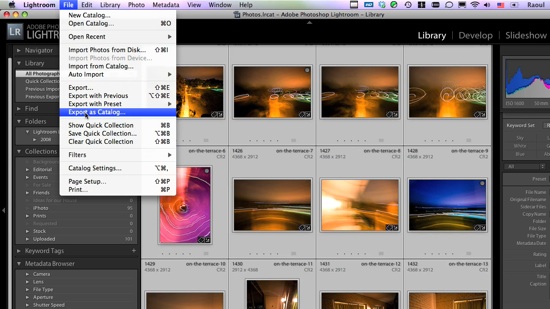
This screencast will show you how to transfer photos between different Lightroom catalogs, and it will go beyond that by also demonstrating how the whole process could be made a LOT easier if Adobe wanted to.
In the screencast, I refer to an article I wrote a while back, entitled “The next stage for Lightroom“, where I put forth a proposal for improving the way Lightroom stores photos, with an eye on catalog portability (laptops, for example). If you have the time, please read through that article after you see the video.
The video is about 10 1/2 minutes long, file size is 78MB, and it’s 720p HD, MOV. You can view it online by clicking on the screenshot below, or download it.
Discover more from Raoul Pop
Subscribe to get the latest posts sent to your email.
 Raoul Pop
Isaac, let’s be honest. We both know you were frustrated because you downloaded the video from your Verizon 3G card, and you had to wait a long time. Verizon’s download speeds are beyond my control. Sometimes you, the user, have to make a decision about what files you access when you’re on a slower connection. You can’t have everything all the time.
Also, 80MB really isn’t that big for a video file, especially when you consider that you can delete the file afterwards. I wanted people to see my screen as clearly as possible.
LikeLike
I appreciate the video. But, I do not see the need for having a high-def video for this subject matter. 78 MB is way too large for a “screencast”. Maybe if you had two versions, one like 5MB, and maybe one at 720p. It doesn’t make sense if you want people to watch it. I would like to watch it without having to wait every 15 seconds for it to buffer or have it take 80MBs on my laptops harddrive.
LikeLike
Dan, you’re right! Just had a chance to try it, and it works great. If you have a lot of photos in the catalog you’re importing from, it’s a bit of a hassle to filter the photos, but yeah, it works fine, and it eliminates the extra step.
LikeLike
You have added in the transfer step which is not needed. If you want to move files, metadata, keywords, and develop settings there is an easier way. Start by opening the catalog that you want to move items into from the file menus Open Recent item. Then select import from catalog menu items and select the catalog that you want to get the files develop settings etc from and select the folders that you want to import along with other options.
So, I shoot and put the files on my laptop. Then edit keyword etc and when I get back home. I open my desktop’s catalog and select the photos from the laptops catalog and “pull” them over to the desktop. The real hassel is that I have to delete them from the laptop manually. If I then want to work on them on the laptop I have to reverse the process.
I think this is one thing that Aperture does so much better than LR. Aperture allows one to keep everything together in a project and then move that project from one library to another. Moreover once you move it to a library that has a backup set, the photos get backed up. LR is completely manual in this regard.
Also, I agree with you opinions about keeping the previews in one place and then the files in another for offline work. Again Aperture’s file management ability advantage shows here.
LikeLike